Upgrading Ubuntu 22.04 to 24.04 on a 1GB RAM Virtual Machine
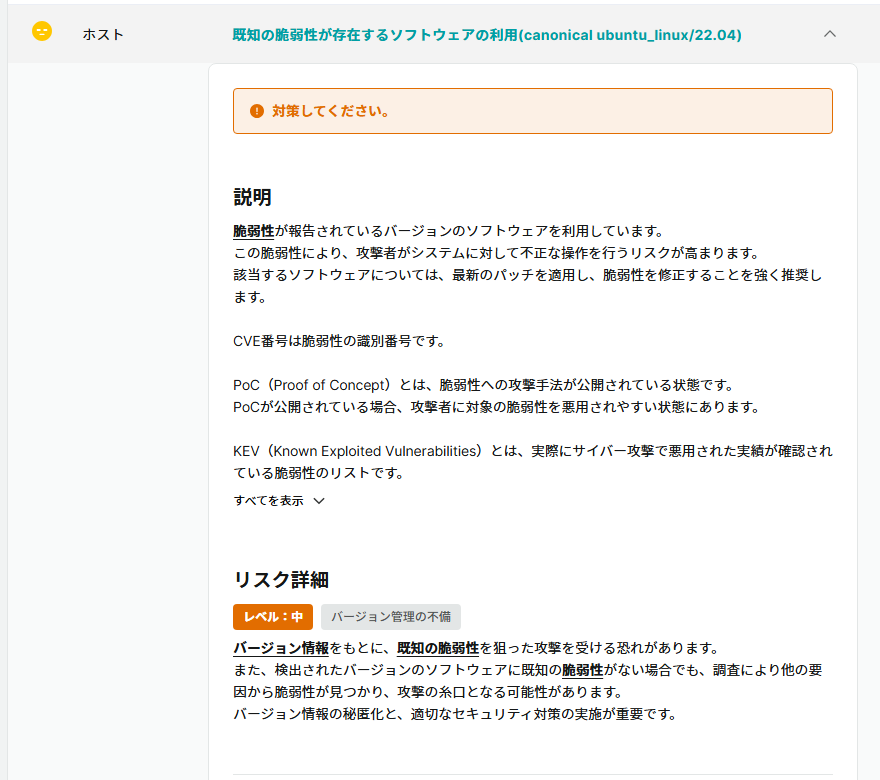
To check the security of my website, I ran the “Net-de-Diagnosis" service provided by OkiDoki/Onamae.com. As a result, the host OS received a warning (Risk Level: Medium) for “Use of Software with Known Vulnerabilities (canonical ubuntu_linux/22.04)."
For my blog’s server environment, I use OCI (Oracle Cloud Infrastructure). OCI is a cloud service provided by Oracle, featuring an Always Free tier where small virtual machines can be used indefinitely without expiration. Currently, I operate a redundant configuration with two virtual machines placed behind a load balancer to distribute incoming traffic.
Upon reviewing the two server environments after receiving the vulnerability warning, I discovered a discrepancy in their OS versions.
- Primary Machine: Ubuntu 24.04.3 LTS
- Secondary Machine: Ubuntu 22.04.5 LTS
Checking the login message on the secondary machine revealed that 50 packages, including 3 security updates, remained unapplied, and a “System restart required" notice was displayed. It was clear that I needed to resolve this environmental disparity and unupdated state.
Safely Migrating to Ubuntu 24.04 Even with an Environment of Approx. 1GB RAM
For this migration, I established the following goals:
- Quantitative Metric: Update the secondary machine’s OS to Ubuntu 24.04 LTS and reduce the number of pending updates displayed upon login to 0.
- Qualitative Metric: Complete the upgrade without performance degradation despite the constrained environment of approx. 1GB of physical memory, and ensure that running Docker containers continue to operate normally.
Concerns Regarding Out-of-Memory Issues Due to 1GB RAM and No Swap Space
Before actually executing the distribution upgrade, I checked the memory status using the free -h command to verify whether a small virtual machine could withstand heavy update processing.
total used free shared buff/cache available
Mem: 956Mi 282Mi 115Mi 1.0Mi 557Mi 522Mi
Swap: 0B 0B 0B
The check revealed that the physical memory (RAM) was only 956Mi (approx. 1GB), and zero swap space had been allocated.
Swap space is a mechanism that uses a portion of storage (such as an SSD) as temporary memory when physical memory runs low. While reading from and writing to storage is slower than physical memory and can slow down the system if relied upon heavily, it acts as a “safety valve" to prevent forced termination caused by sudden memory shortages.
Major OS upgrades consume a significant amount of memory for resolving package dependencies and unpacking processes. I realized that executing an upgrade with only 1GB of physical memory and no fallback swap space could lead to out-of-memory errors (OOM Killer), causing the upgrade to fail.
Procedure for Creating a 4GB Swap and Running do-release-upgrade
Because the load balancer was configured to route traffic to the primary machine, I allowed for the temporary suspension of containers on the secondary machine during the work and proceeded with the upgrade using the following steps. (As a precaution against unexpected boot failures, it is safer to take a backup of the boot volume from the cloud management console before starting.)
Checking Available Disk Space and Creating a 4GB Swap File
First, I checked whether there was enough storage capacity to allocate as swap space using the df -h command.
Filesystem Size Used Avail Use% Mounted on
/dev/sda1 45G 14G 32G 30% /
Since the root partition (/) had 32GB of free space, I created a generous 4GB swap file and registered it in /etc/fstab so that it remains enabled after rebooting.
sudo fallocate -l 4G /swapfile
sudo chmod 600 /swapfile
sudo mkswap /swapfile
sudo swapon /swapfile
echo '/swapfile none swap sw 0 0' | sudo tee -a /etc/fstab
Running free -h again afterward confirmed that the Swap was recognized as 4.0Gi.
total used free shared buff/cache available
Mem: 956Mi 198Mi 129Mi 1.0Mi 628Mi 611Mi
Swap: 4.0Gi 0B 4.0Gi
Applying Current OS Updates and Performing the Release Upgrade
Before executing the major distribution upgrade, I first applied the pending package updates within the Ubuntu 22.04 framework and rebooted.
sudo apt update && sudo apt dist-upgrade -y
sudo reboot
After logging back in and verifying that the pending updates and restart notices were gone, I executed do-release-upgrade. Because processes take longer to complete in low-memory environments, I launched tmux and ran the command from within it to prevent the upgrade from aborting due to a dropped SSH connection.
sudo apt install -y tmux
tmux
sudo do-release-upgrade
During the interactive prompts, I chose the option to keep current settings when asked about replacing existing configuration files (such as sshd_config), and finally rebooted as instructed.
Migration Completion in About 1 Hour and Restoration of Certificate Directory
Thanks to the preemptive allocation of 4GB swap space, do-release-upgrade completed successfully in about one hour without crashing mid-process, even on a virtual machine with approximately 1GB of memory.
Here is an excerpt of the login message after the upgrade:
Welcome to Ubuntu 24.04.5 LTS (GNU/Linux 7.0.0-1013-oracle x86_64)

...(omitted)...

0 updates can be applied immediately.

...(omitted)...

New release '26.04.1 LTS' available.
Run 'do-release-upgrade' to upgrade to it.
The OS was successfully updated to Ubuntu 24.04.5 LTS, and the number of pending updates dropped to 0. Although the message tail indicates that a newer 26.04.1 LTS is available, I proceeded with the migration to 24.04.5 LTS to match the version of the primary machine (which is in the 24.04 family).
Upon verifying operation post-upgrade, I discovered an issue where the contents of the SSL certificate directory mounted in the web-serving Docker container were empty (the cause remains unknown). I recovered from this by re-synchronizing the relevant directory from the paired primary machine via the rsync command, and confirmed that the containers were running without any issues.
As for the 4GB swap file created for this task, I decided to keep it enabled as a safety valve for future operations without deleting it, since there is still plenty of available storage space.
Summary
Prompted by the vulnerability diagnostic tool, I updated my OCI virtual machine with approx. 1GB of RAM from Ubuntu 22.04 to 24.04. Concerned about memory exhaustion during the update due to 0B of pre-existing swap space, I created a 4GB swap file to act as a safety valve. By routing traffic to the other load balancer node and running do-release-upgrade inside tmux, the process completed in about an hour with 0 pending updates remaining. Although the SSL certificate directory for the containers appeared empty post-upgrade, it was successfully restored by syncing from the other server using rsync. Since storage space remains ample, I continue to run the system with the 4GB swap file retained.