How to Fix Issues When Visual Block Selection Fails in Vim on Windows Terminal
Using Windows Terminal has become common as a standard terminal environment in Windows. While it offers the convenience of centrally managing PowerShell, WSL, and SSH clients, it also introduces a significant issue for Vim users: key binding conflicts.
Specifically, this involves the Ctrl+v shortcut used for Visual Block selection in Vim. In the default settings of Windows Terminal, Ctrl+v is assigned to “Paste from clipboard". Consequently, attempting to perform a Visual Block selection in Vim fails to enter visual block mode, resulting in the contents of the clipboard being pasted instead.
While Vim provides Ctrl+q as an alternative key, depending on the connected Linux environment (particularly enterprise OSs such as RHEL), even this Ctrl+q may fail to respond. Why does Ctrl+q work in environments like Ubuntu on WSL, but fail on certain SSH connection targets? This article describes the causes and countermeasures.
Objective: Environment Setup Aligned with Your Operation Style
The goal of the solution in this article is to achieve one of the following two patterns:
- Use the alternative key Ctrl+q (Recommended): Keep the Windows Terminal “Paste (Ctrl+v)" function, and modify the Linux-side settings to ensure Ctrl+q works reliably.
- Use the native Ctrl+v: Remove the Windows Terminal “Paste" setting and let Ctrl+v pass through to Vim.
The Problem: Flow Control and the Barrier of Client Settings
The causes preventing Visual Block selection exist on both the client (Windows) and server (Linux) sides.
- Client-side issue (Ctrl+v): Because the Windows Terminal app preferentially processes Ctrl+v as “Paste", the keycode does not reach Vim within the SSH session.
- Server-side issue (Ctrl+q): In Linux terminal settings (TTY), if historical “software flow control (XON/XOFF)" is enabled, Ctrl+q is processed as a “resume communication" signal. As a result, key input does not reach Vim.
Specific solutions for each approach are described below.
Solution A: Change Server Settings to Use “Ctrl+q"
This is the workaround when you do not want to change the standard Windows operating feel (pasting with Ctrl+v). It disables flow control on the Linux side and enables Ctrl+q.
Check Current Settings
Execute the following command on the target server to check the terminal settings.
stty -a

If ixon is displayed in the output results, flow control is enabled (it is disabled if shown as -ixon). When enabled, Ctrl+q will not function as Visual Block selection.
Disabling Flow Control
Run the following command to disable flow control.
stty -ixon
This disables the special functions of Ctrl+s and Ctrl+q, allowing them to be passed to the application as normal key inputs. Confirm that entering Ctrl+q in Vim allows you to transition to Visual Block mode.
Making Settings Permanent (Adding to .bashrc)
Since temporary command execution resets settings upon logout, you should append the settings to your .bashrc. However, to prevent errors during non-interactive connections such as SCP or SFTP, you must include a conditional branch (if [ -t 0 ]) to execute only when standard input is connected to a terminal.
# Append to .bashrc
# Disable flow control (XON/XOFF) only when connected to a terminal (TTY)
if [ -t 0 ]; then
stty -ixon
fi
This configuration safely enables Ctrl+q exclusively during terminal operations without affecting automated processes like file transfers.
Solution B: Change Windows Terminal Settings to Use “Ctrl+v"
This is the workaround when you want to prioritize Vim’s native Ctrl+v operation. Modify the Windows Terminal settings to resolve the key conflict.
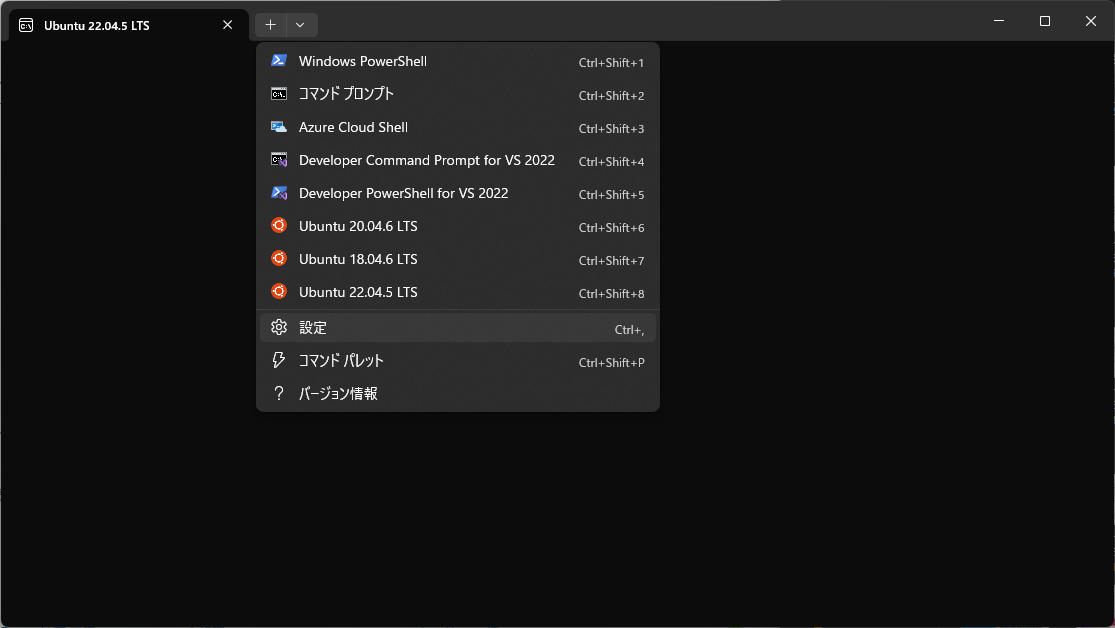
Open the Settings Menu
Launch Windows Terminal and press the shortcut key Ctrl + , (comma) to open the settings tab.
Navigate to the “Actions" Menu
Select “Actions" (or “Interactions" depending on the version) from the left sidebar. A list of shortcut keys will be displayed here.
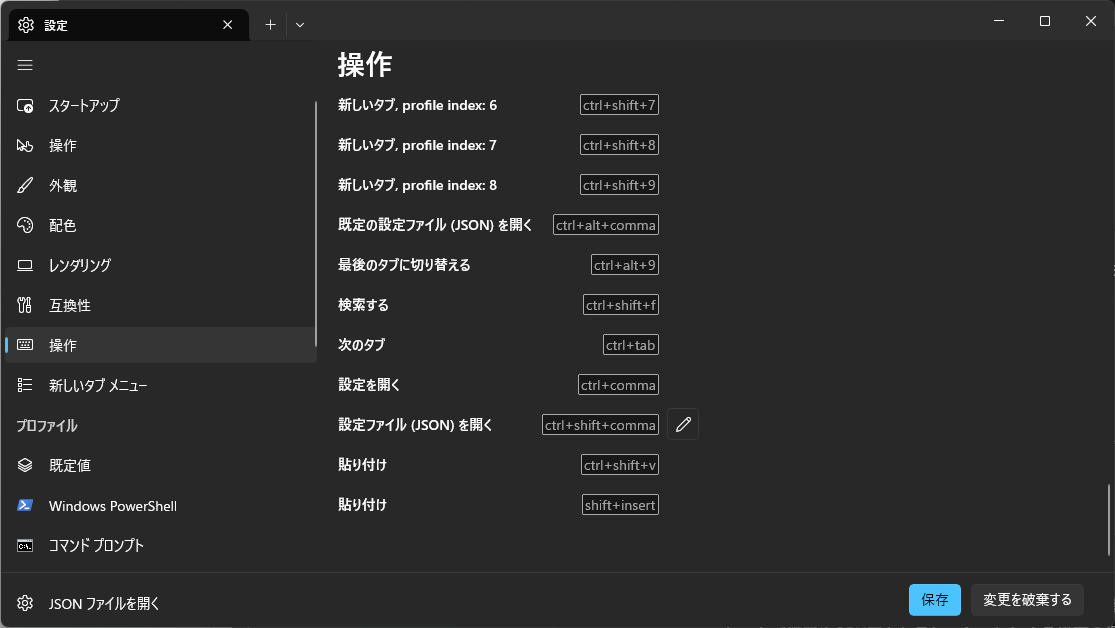
Modify the “Paste" Setting
Find the “Paste" item in the list. By default, Ctrl+v is assigned to it.
Setting changes take effect immediately (click the save button if prompted). This prevents Windows Terminal from intercepting Ctrl+v, passing key inputs directly to Vim instead. As a result, Visual Block selection using Ctrl+v becomes possible in Vim.
Conclusion
The issue of not being able to use Vim’s Visual Block selection in Windows Terminal is caused by a combination of factors on both the client and server sides.
- Ctrl+v: Windows Terminal preferentially processes it as “Paste".
- Ctrl+q: May be preferentially processed as “flow control" in the Linux-side terminal settings (stty).
While you can reclaim Ctrl+v by modifying Windows Terminal settings, reviewing the stty settings on the Linux side is a more logical approach to avoid compromising standard Windows usability. When key inputs fail to respond, checking communication control-level settings (ixon) in addition to key bind configurations is the shortcut to a resolution.