[Windows 11] How to Automatically Run Full Scans at Night
While Windows’ built-in “Microsoft Defender" is an excellent security tool, its downside is that running a full scan makes the PC extremely sluggish. Unlike the “quick scan" that normally runs in the background, a full scan inspects deep into the system and inside compressed files, resulting in the reading of millions of files.
Because modern PCs feature large-capacity drives, it’s common for a full scan to take several hours to complete. During that time, CPU and storage loads remain constantly maxed out, making it impossible to get any real work done.
“I want to run full scans just to be safe, but I don’t want them getting in my way." We can solve this problem by having them “run automatically at night."
Objective: Balancing Security and Usability
The goal here is to perform maximum security checks without sacrificing the user’s working hours.
- Current State: Relying only on default settings (quick scans) or performing full scans manually.
- Challenges: Manual full scans are easy to forget, and the PC becomes too slow to use during execution.
- Goal:
- Execution Timing: Set to nighttime when the PC is not in use (e.g., 22:00).
- Scan Scope: All drives (Full Scan).
- Operation: Fully automated (including wake from sleep).
Work hard during the day, maintain thoroughly at night. We’re going to automate this balance.
Solution: Using Task Scheduler
The Windows 11 settings menu does not have an option called “Schedule Full Scan." Therefore, we will use Windows’ built-in management tool, the “Task Scheduler."
By directly calling Defender’s actual executable program (MpCmdRun.exe), flexible scheduling options not found in the GUI become possible.
*Administrator privileges are required for this configuration.
Configuration Steps
There are 3 steps. Although the interface looks a bit technical, the inputs are straightforward so it’s not difficult.
- Opening Task Scheduler
Search for “Task" in the Start menu and open “Task Scheduler" with “Run as administrator." *Without administrator privileges, you cannot control security software. - Creating a Task
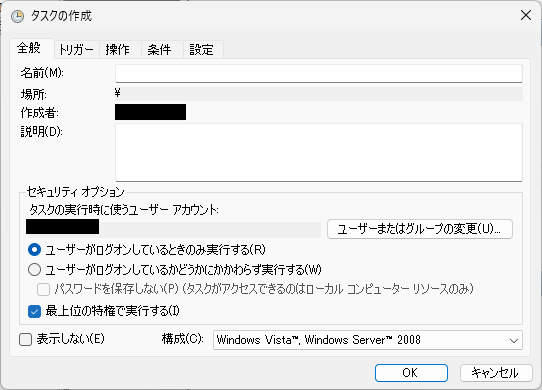
Click “Create Task" from the actions panel on the right. Configure the following 4 tabs.- General Tab

- Name: Any preferred name, such as Defender Night Full Scan.
- Security Options:
- Check “Run whether user is logged on or not."
- Check “Run with highest privileges" (Required).
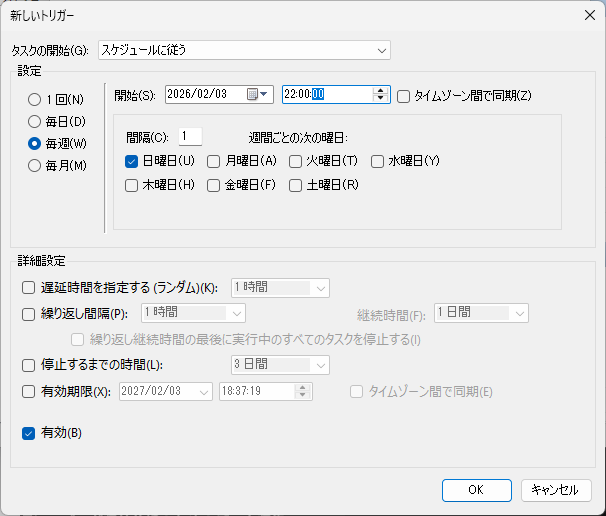
- Triggers Tab

Determine “when to run." Click “New."- Begin the task: “On a schedule"
- Settings: “Weekly"
- Start time: Friday at 22:00:00, for example.
- *Running this every day puts a heavy load on the SSD, so “once a week" is recommended to start.
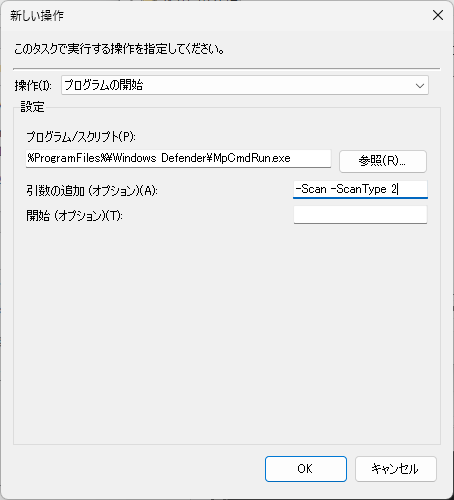
- Actions Tab

Determine “what to run." Click “New."- Program/script:
"%ProgramFiles%\Windows Defender\MpCmdRun.exe"(*If the path doesn’t resolve, enterC:\Program Files\Windows Defender\MpCmdRun.exe) - Add arguments: -Scan -ScanType 2 (* 2 is the parameter specifying a full scan)
- Program/script:
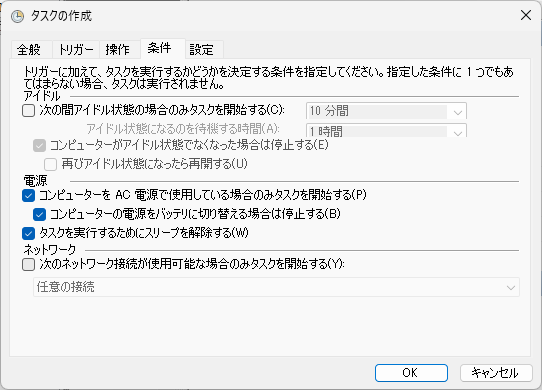
- Conditions Tab
This is a mandatory setting for running tasks at night.- Power: Check “Start the task only if the computer is on AC power."
- Power: Check “Wake the computer to run this task."
Without this, the task will not execute if the PC is in sleep mode.
- General Tab
- Save and Complete
Clicking “OK" will prompt you to enter your password. Once the task appears in the task list, you are all done.
Summary
When 22:00 arrives on the designated day of the week, the PC will automatically wake up from sleep and begin a thorough check. By the time you open your PC the next morning, the scan will already be complete.
- Daytime: Keep things snappy with quick scans.
- Nighttime: Inspect thoroughly with full scans.
By putting this configuration in place, you won’t have to let alerts saying “Full scan required" interrupt your workflow. Automate those heavy maintenance tasks while you sleep.