How to Identify the USB Root Hub Connected to USB Devices in Windows 11 and Enable Wake from Sleep
In a Windows 11 environment, you may sometimes encounter an issue where you cannot wake up your PC from auto-sleep using a USB keyboard or mouse. One of the main causes is related to the power management settings of the USB root hub. However, a common challenge is that multiple "USB Root Hub" entries appear in Device Manager, making it difficult to figure out which specific hub your target USB device is connected to.
Objective
The purpose of this article is to ensure that your PC can reliably wake up from sleep using USB devices (such as a mouse or keyboard). To achieve this, we will identify the corresponding USB root hub and uncheck "Allow the computer to turn off this device to save power" in its power management settings, thereby preventing sleep recovery issues.
Goals
- Clarify the connection relationship between USB devices and USB root hubs
- Appropriately modify the power management settings of the target root hub
- Stabilize wake-from-sleep functionality via USB devices
How to Identify the USB Root Hub
Method 1: Checking via Device Manager (Simple)
- Right-click the Start menu → Open "Device Manager"
- Expand "Universal Serial Bus controllers"
- Right-click "USB Root Hub (USB 3.0)" or similar → Properties
- Check the "Power Management" or "Details" tab to verify the relationship with child devices
* Note: Because this method is visually unclear and does not show the hierarchical structure, using USBView is recommended as a more accurate approach.
Method 2: Identifying Using USB Device Viewer (USBView.exe) (Recommended)
Using Microsoft’s official tool, "USB Device Viewer" (commonly known as "USBView"), allows you to visualize the hierarchical structure of USB connections in a tree format and check detailed information for each device.
Step 1: Installing USBView
- Download the official Microsoft Windows SDK from the following link: https://developer.microsoft.com/en-us/windows/downloads/windows-sdk/
- Launch the installer, select only "Debugging Tools for Windows", and proceed with installation

- After installation, navigate to the following folder:

C:\\Program Files (x86)\\Windows Kits\\10\\Debuggers\\x64\\
- Run
usbview.exe
Step 2: Checking with USBView
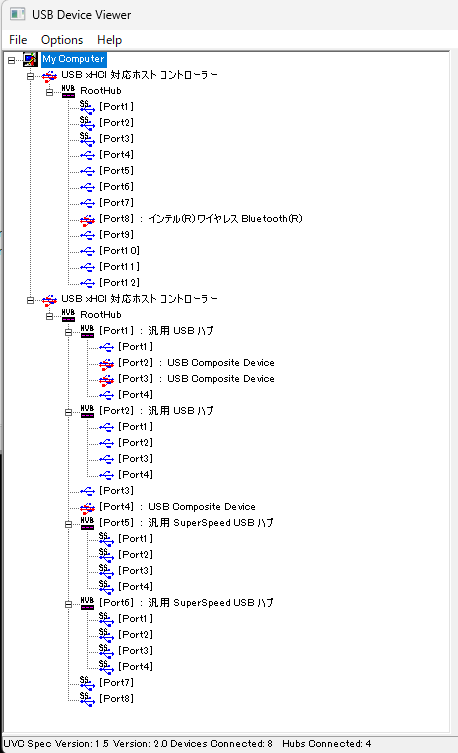
In USBView, USB host controllers, root hubs, and their connected devices are displayed in a tree structure on the left side.
- Find and select your target USB device (e.g., keyboard)
- Check the
Device ID,Vendor ID, orProduct IDdisplayed in the device information on the right pane

Step 3: Cross-Referencing with Device Manager
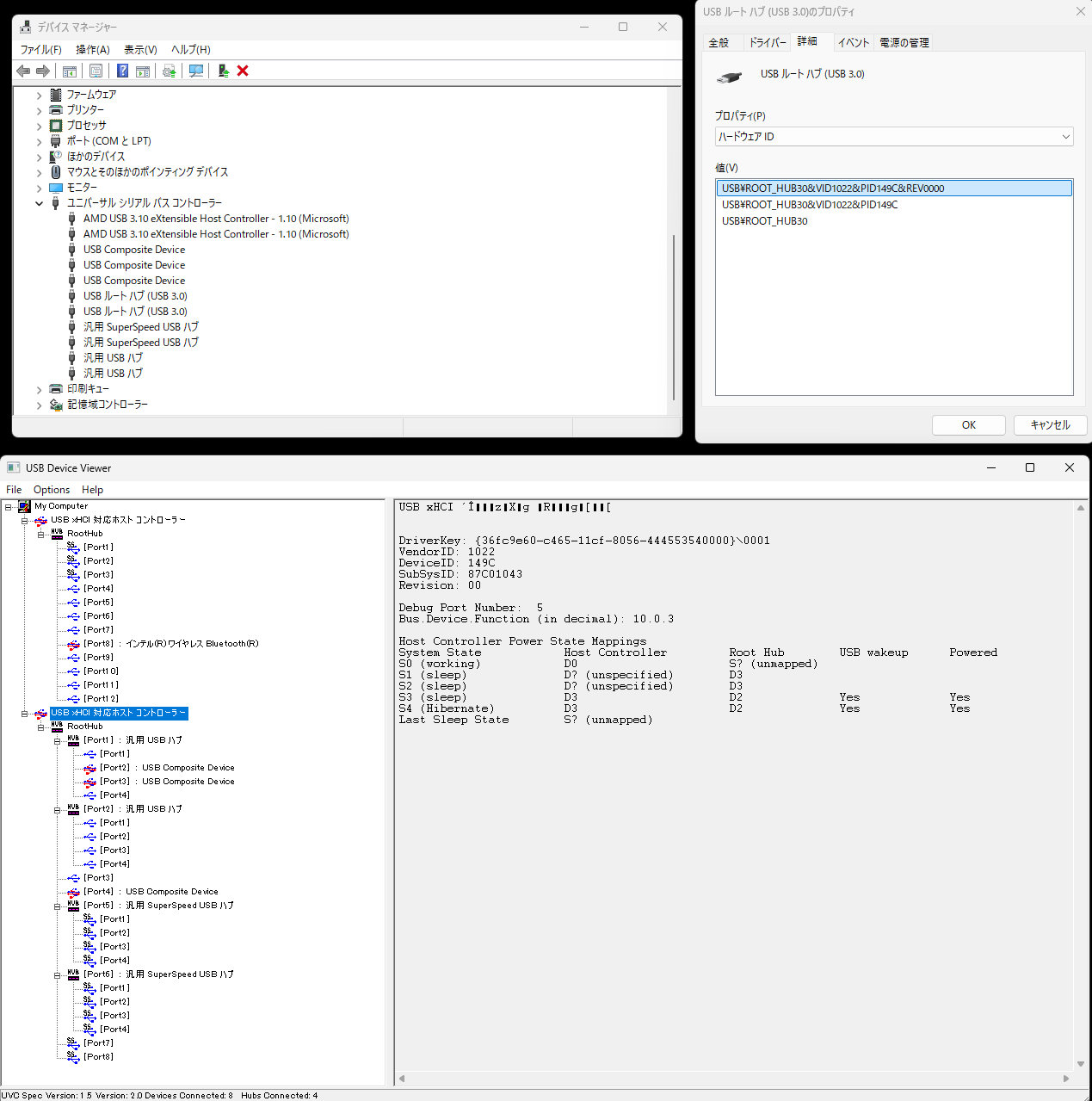
- In Device Manager, right-click the target USB device → Properties
- Go to the "Details" tab → Select "Hardware IDs" from the Property dropdown
- Cross-reference this with the Device ID displayed in USBView to identify which USB root hub it is connected to

Modifying Power Management for the Target USB Root Hub
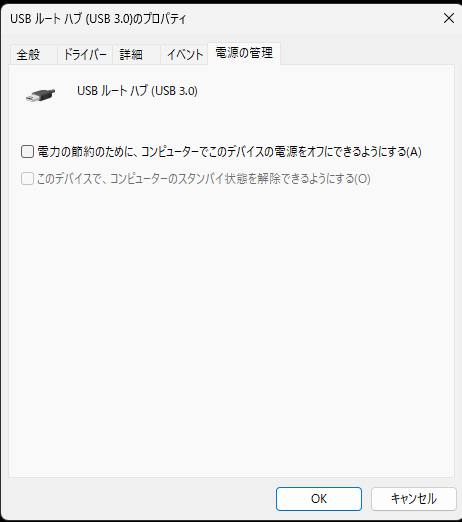
- Return to Device Manager, right-click the corresponding "USB Root Hub" → Properties
- Open the "Power Management" tab
- Uncheck "Allow the computer to turn off this device to save power"
- Click OK to close

Results
Through this method, I was able to determine in my environment that the mouse was connected to one of the USB Root Hub (USB 3.0) instances. By modifying the "Power Management" settings of the target root hub, I successfully restored the ability to wake up the PC using the USB mouse even after entering sleep mode.
Summary
Troubles where a PC fails to wake from sleep are often caused by power-saving settings on the USB root hub. By using USBView to pinpoint the target hub and configuring the appropriate power management settings, you can resolve the issue accurately and efficiently. This is a highly effective countermeasure if you want to achieve stable wake-from-sleep functionality.