Trial and Error in Forwarding and Displaying Linux Server X Apps via WSL2
I wanted to SSH from WSL2 (Windows Subsystem for Linux) running on Windows to a Linux server (CentOS 7 in this case) and forward/display a GUI app using X11 forwarding. I tried ssh -Y, but it wasn’t quite as straightforward as I hoped.
This article summarizes the trail of trial and error I went through until I was finally able to display xclock, along with the key configuration points to make it work properly.
Environment
- Local: Windows 11 + WSL2 (Ubuntu 22.04)
- Remote: CentOS 7
- Goal: Display a GUI app (e.g., xclock) on the WSL side using
ssh -Y
First Error Encountered
$ ssh -X <centos7>
Warning: No xauth data; using fake authentication data for X11 forwarding.
X11 forwarding request failed on channel 0
Even after trying various information found by searching for this message, xclock would not appear.
Checking the WSL Side
First, I checked if the X server on the WSL side was running.
$ echo $DISPLAY
:0
$ xclock
If xclock appears here, it is proof that the WSL X server (such as WSLg or VcXsrv) is running. However, the following warning may sometimes appear:
Warning: Missing charsets in String to FontSet conversion
Since this is font-related, it can be ignored and will not affect operation.
Note: When I tried it on another machine, it didn’t work if the WSL (WSLg) version was too old. In that case, please update WSL.
wsl —update
※Please run this in Command Prompt or PowerShell with administrator privileges.
Restart WSL after the update and check again.
Organizing .Xauthority
Next, I initialized and organized .Xauthority using xauth.
cp ~/.Xauthority ~/.Xauthority.bak
xauth remove $(xauth list | awk '{print $1}')
xauth add localhost:10.0 . $(mcookie)
Important Configuration on the Remote (CentOS 7) Side
This is the most critical point.
sudo vi /etc/ssh/sshd_config
Make sure to check and modify the following settings:
X11Forwarding yes
X11UseLocalhost no
If you leave this as:
X11UseLocalhost yes
forwarding from WSL will continuously fail. In fact, a large number of errors like the following were appearing in the logs:
error: Failed to allocate internet-domain X11 display socket.
After configuring, restart sshd:
sudo systemctl restart sshd
✅ Allowing DISPLAY
Configure the WSL side to accept connections:
export DISPLAY=:0
xhost +
This also allows connections from external sources (CentOS 7).
🔄 Final Connection and Verification
ssh -Y <centos7>
echo $DISPLAY
xclock
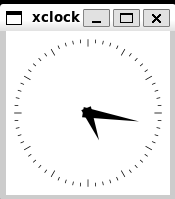
xclock finally appeared! 🎉
💡 Summary
X11UseLocalhost nois mandatory- Manage
.Xauthoritywithxauth - Allow connections with
xhost + - Ideally, the
DISPLAYvalue is automatically set to:0on the WSL side andlocalhost:10.0or similar on the remote side - Once GUI apps can be displayed,
gedit,xeyes,firefox, etc., will work similarly
📝 Bonus
Font warnings when running xclock can be resolved with the following package:
sudo yum install -y xorg-x11-fonts-misc