Installation Guide for pcb2gcodeGUI on WSL2 Ubuntu 22.04.4 LTS
In this blog, we explain the step-by-step installation procedure for pcb2gcodeGUI on an Ubuntu 22.04.4 LTS environment running under WSL2. pcb2gcodeGUI is a useful tool that generates G-code from PCB data, but using it requires building its underlying dependencies: pcb2gcode and gerbv. The detailed procedure is outlined below.
Prerequisites for pcb2gcodeGUI
To use pcb2gcodeGUI, the following components are required:
-
pcb2gcode
-
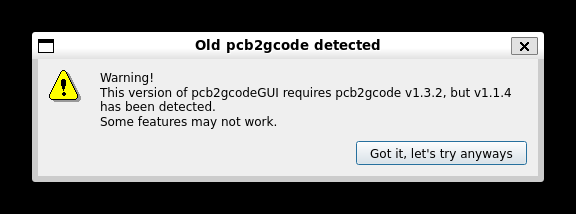
Installing via apt installs version 1.1.4, but the recommended version is 1.3.2 or higher, so it must be built from source.

-
-
gerbv
-
Required by pcb2gcode, version 2.1.0 or higher is needed. Since apt does not provide the latest version, this must also be built from source.
If a version 2.1.0 or higher is not installed, the following error will occur during ./configure.checking for libgerbv >= 2.1.0... no configure: error: Package requirements (libgerbv >= 2.1.0) were not met: Requested 'libgerbv >= 2.1.0' but version of libgerbv is Consider adjusting the PKG_CONFIG_PATH environment variable if you installed software in a non-standard prefix. Alternatively, you may set the environment variables gerbv_CFLAGS and gerbv_LIBS to avoid the need to call pkg-config. See the pkg-config man page for more details.
-
The current latest version is v2.10.0.
-
Installing gerbv
First, build and install gerbv. Proceed according to the steps below.
sudo apt install build-essential automake autoconf autoconf-archive libtool libboost-program-options-dev libgtkmm-2.4-dev gerbv git librsvg2-dev
git clone https://github.com/gerbv/gerbv.git
cd gerbv
git checkout -b v2.10.0 v2.10.0
autoreconf -f -v -i
./configure --disable-update-desktop-database
make
sudo make install
Installing pcb2gcode
Next, build and install the latest version of pcb2gcode from source.
git clone https://github.com/pcb2gcode/pcb2gcode.git
cd pcb2gcode
git checkout -b v2.5.0 v2.5.0
autoreconf -f -v -i
./configure
make
sudo make instlal
Installing pcb2gcodeGUI
Finally, install pcb2gcodeGUI. Follow the build instructions on GitHub, but since qt5-default is not provided, use qtbase5-dev as an alternative package.
sudo apt install build-essential git qt5base5-dev libqt5svg5-dev
git clone https://github.com/pcb2gcode/pcb2gcodeGUI.git
cd pcb2gcodeGUI
git checkout -b v1.3.3 v1.3.3
qmake
make
sudo make install
Execution Result
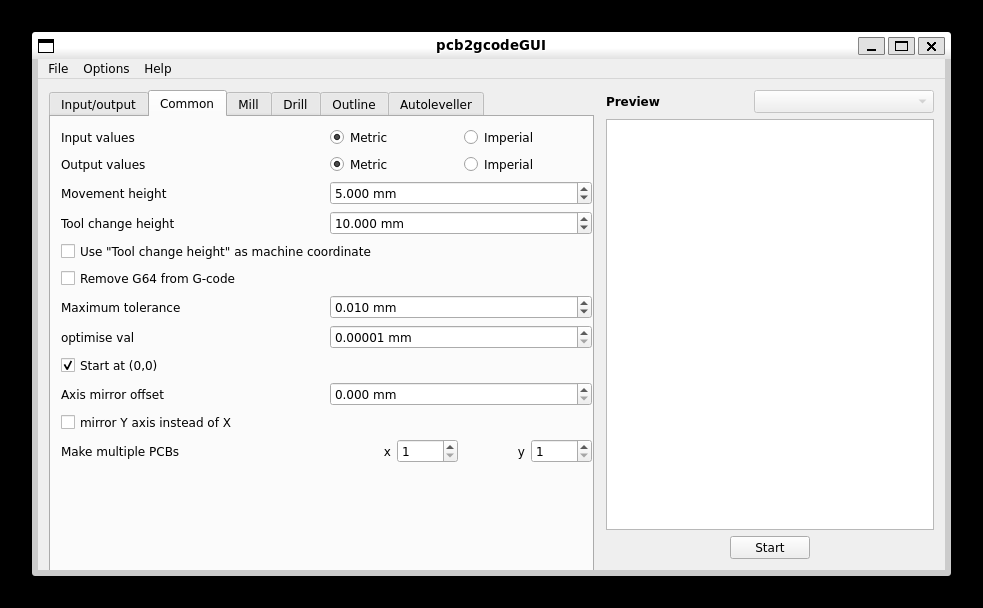
Running pcb2gcodeGUI will display a window like the one below:
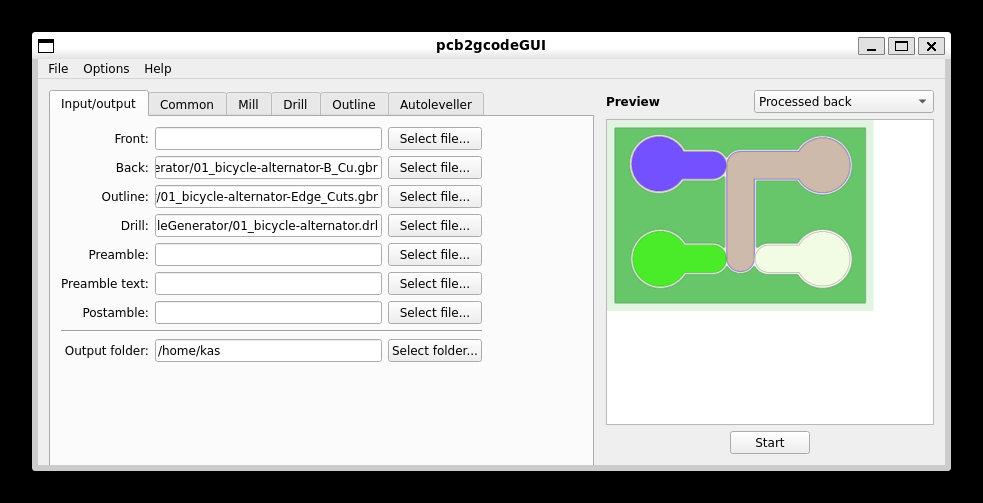
After that, configure various settings, set your Gerber and Excellon drill files in the Input/output tab, and click the Start button to generate the G-code file.
Conclusion
In this tutorial, we explained how to build from source and install the necessary dependent software (gerbv and pcb2gcode) in order to use pcb2gcodeGUI on WSL2 Ubuntu 22.04.4 LTS. Since the latest versions are not provided via apt, building from source is essential. This sets up an environment to generate high-precision G-code from PCB data while ensuring the latest features and stability.
By accurately following each step, you will be able to efficiently utilize pcb2gcodeGUI on WSL2, so please give it a try.