Steps to Restore Gemini Chat History and Establishing Automated Backup Operations to Prevent Re-disappearance
To address the issue where Gemini chat histories disappear from the list, we previously relied on the method of viewing past prompts from “My Activity". However, while this allowed users to check the content, it presented the challenge of making continued use within the chat UI difficult.
This time, we have confirmed an alternative method that restores the history list itself on the UI by accessing a specific URL, and we have summarized the steps below. In addition, to avoid situations where data cannot be fully recovered due to cloud-side synchronization glitches or specification changes, we have established an operational workflow that combines local backups using browser extensions.
Steps to Restore the History List
Even for chats that have disappeared from the history list, if the data itself has not been deleted, it is possible to make them reappear in the sidebar (history list) using the following steps.
Procedure: Re-indexing via URL Access
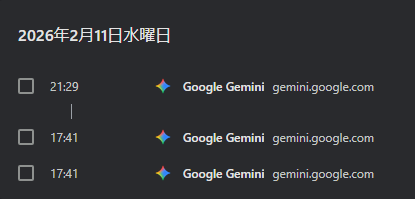
- Locate the Individual URL: Search your browser history (Ctrl + H) for the URL of the disappeared chat (gemini.google.com/app/[Chat ID]) and access it.

- Trigger an Update: Once the chat screen opens, send any message.
- Re-registration to the List: This operation updates the server-side index, making the relevant chat appear again in the sidebar’s history list.
Synchronization Across Multiple Devices
We have confirmed that after restoring the history using the above procedure on a PC browser, restarting the Gemini app on devices like the iPhone (relaunching after force-closing the task) successfully reflects the synchronization in the app’s history list as well.
Data Protection via Local Backup
To manage data permanently without relying on official synchronization features, we use two browser extensions in combination.
Division of Operational Roles
| Tool | Main Role | Remarks |
| Gemini Voyager | Chat Organization & Categorization | Used for folder management per project. |
| Chat Memo | Automatic Log Recording | Automatically saves all interactions in the background. |
Even if Gemini Voyager’s automatic synchronization fails, using Chat Memo in tandem prevents manual save omissions and ensures logs are accumulated in local storage.
Storage Capacity and Maintenance
The browser’s local storage (IndexedDB) used by Chat Memo generally has a limit of about 1GB. For long-term operations, perform the following maintenance:
- Regular Exports: Export the accumulated logs to an external location (such as a local PC folder) in Markdown or JSON format.
- Data Cleanup: After the export is complete, delete old data within the extension to free up storage space and maintain browser performance.
Conclusion
To deal with disappearing Gemini histories, an operational approach combining “knowing how to restore" via direct URL access and “automatic local backup" using extensions is effective in preventing complete data loss.