Safely Displaying 3D Models in WordPress: Migrating from Plugins to Sketchfab Embeds
Previously, I used a plugin called “3D Viewer – Display Interactive 3D Models" to display 3D models on WordPress. However, as I continued using it, notifications prompting me to upgrade to the Pro version appeared with increasing frequency, becoming a nuisance for site management.
Furthermore, from a technical standpoint, standard 3D display plugins simply output the paths of raw data (such as GLB files) uploaded to the server directly to the front end. This posed a security vulnerability where original 3D model data could easily be downloaded if someone monitored network traffic using browser developer tools.
Zero Additional Cost and Prevention of Direct Downloads
When migrating the display system, I established the following two criteria for success:
- Keeping additional operational costs at zero. Expensive paid plugin subscriptions were ruled out from the start.
- Completely preventing simple raw data extraction through standard browser operations (such as the Network tab in developer tools).
Increased Maintenance Costs Associated with Building a Custom System
As a way to prevent data downloading, I considered building a custom viewer that uniquely encrypts 3D models on the server side and decrypts and renders them via JavaScript on the browser. However, for running a personal blog, maintaining an encryption and decryption mechanism continuously incurs a time cost that is far too high. Moreover, directly serving large 3D model files from my own server leads to increased traffic and higher server load.
Sketchfab Streaming and Steps to Obtain the Embed Code
Avoiding a custom-built system, I switched to utilizing “Sketchfab," an external 3D platform. Sketchfab is a world-standard 3D model sharing service designed to strongly prevent the extraction of raw data through its proprietary streaming technology.
Implementation in WordPress is extremely simple. No plugins are required; you just obtain and paste the embed code following these steps:
- Upload the target 3D model to Sketchfab.
- Open the dedicated page for the model and click the “Share" button.
- Select “</> GET EMBED CODE" from the displayed menu.

- Adjust the settings on the screen, then select “COPY TO CLIP BOARD" to copy the code.

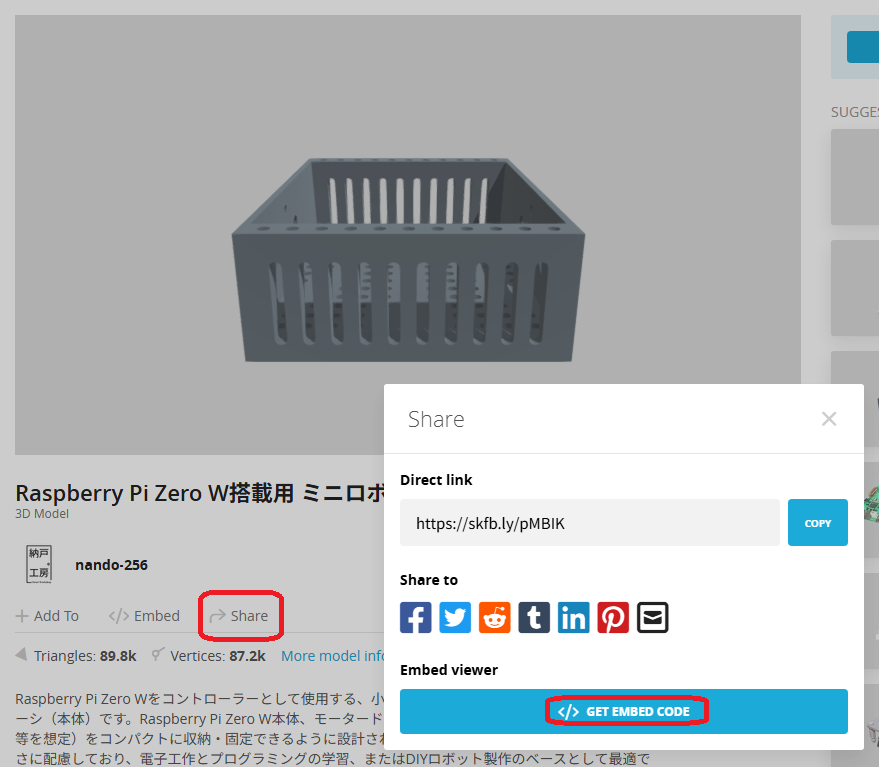
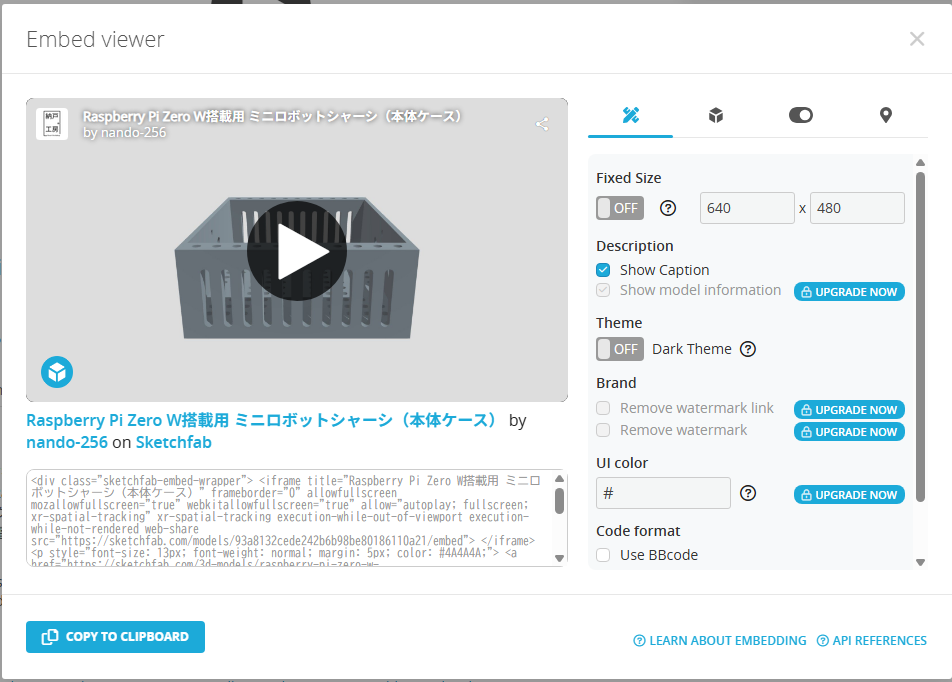
If you want to determine the display size of the viewer in advance when pasting it into your blog, you can change it to your preferred dimensions by adjusting items such as “Fixed Size" in the settings panel before copying the code. The copied code will work properly just by adding a “Custom HTML" block in the WordPress post editor and pasting it as-is.
Reducing Server Load and Creating a Secure 3D Catalog
As a result of implementing this method, I was completely freed from the plugin’s excessive upsell prompts. Furthermore, since all processing related to 3D model rendering and data delivery was offloaded to Sketchfab, the load on my blog’s host server dropped to zero.
You can check out an actual working example in the article about my homemade Bluetooth robot below.
It is smooth to rotate, zoom in, and zoom out on 3D models even from smartphones and PCs, and I have successfully prevented the casual data downloading that I was concerned about.
 https://amzn.to/4q4wXvU
Conclusion
To address the issues of excessive monetization prompts and raw data leaks from 3D display plugins, I solved the problem not by building a custom encryption system from scratch, but by leveraging Sketchfab’s iframe embeds. As a result, I was able to build a comfortable 3D preview environment with zero additional cost, robust data protection, and completely eliminated traffic load on my own server.