Batch Converting HEIC Files in WSL
HEIC (High Efficiency Image File Format), a standard image format adopted by mobile devices starting with the iPhone, is a highly rational format that allows high-quality images to be saved at roughly half the file size of traditional JPEG. However, when trying to enjoy this convenience in a Windows 11 environment, users run into a barrier where the OS-standard “Photos" app prompts them to purchase a paid add-on (HEVC Video Extensions).
While the workaround of installing the “free version from the device manufacturer" was once widely known, as of 2026, stricter license checks have resulted in this installation being blocked in many environments. The starting point of this article is to tackle this OS-level limitation ourselves by leveraging the Windows Subsystem for Linux (WSL), rather than relying on specific companies or opaque free software displaying advertisements.
Achieving a Clean Conversion Environment at Zero Cost
The objective of this article is to build a completely local environment for batch converting HEIC files to JPEG format by introducing an open-source library (libheif) available in the Linux environment on WSL. By completing all processing locally on your PC without using external online conversion services, you simultaneously protect your privacy and accelerate your workflow.
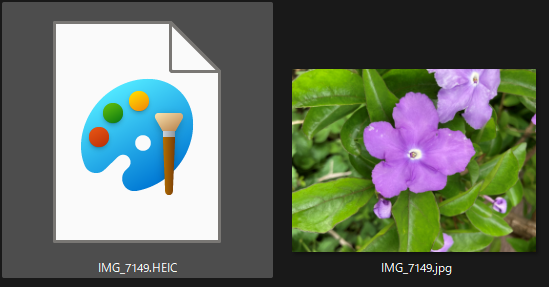
The Paywall and Opaque Free Software
The issue currently faced by many Windows users is the absurdity of being forced to pay, even a small amount, just to handle a common image format like HEIC. In response to this, simply searching for and installing “free conversion software" is not recommended. Many of these are opaque binaries with closed source code, carrying the risk of displaying unnecessary advertisements or, worst of all, harboring malware.
Furthermore, web-based conversion services pose a critical security concern: uploading personal photos to external servers. If the “framework" of OS specifications fails to function, we must use reliable open-source technology to build our own secure environment.
Installing libheif on WSL
Here, we present the most streamlined method to resolve these issues. First, install the conversion engine on WSL (Ubuntu, etc.).
sudo apt update && sudo apt install -y libheif-examples
The Failed One-Liner
When attempting to automate batch conversion, the first approach that comes to mind for many users is using a for loop with the results of a find command. However, this harbors a pitfall specific to shell scripts.
Example of a Failing Script
Executing this notation results in an error like the following when file names contain spaces (e.g., "IMG_6970 – Copy.HEIC").
Input file is not an HEIF/AVIF file
Cause of Failure: Word Splitting
The reason for this failure lies in the shell behavior known as "word splitting." When expanding the execution result of $(find …), the shell treats spaces as "data delimiters." As a result, the single file name "IMG_6970 – Copy.HEIC" is split into three independent arguments—"IMG_6970", "-", and "Copy.HEIC"—and passed to the conversion command. Naturally, the command returns an error when passed fragmented, non-existent file names.
While manipulating the environment variable IFS (Internal Field Separator) is one way to solve this, it can be somewhat cumbersome to write smartly in a single line.
The Successful One-Liner
Navigate to the directory containing the target images and execute the following one-liner.
for i in ./*.{HEIC,heic}; do heif-convert "$i" "${i%.*}.jpg"; done
This single line incorporates the following practical technical decisions:
- Leveraging Shell Expansion: By having the shell itself generate the file list rather than using $(find) or similar, it smartly avoids issues with "spaces" contained in file names.
- Brace Expansion: Writing .{HEIC,heic} processes both uppercase and lower-case extensions simultaneously.
- Minimal Code: In the unlikely event that no matching file exists, the conversion command will output an error, but this poses no practical issues. Code brevity and readability are prioritized above all, eliminating excessive conditional branching.
- Parameter Expansion: Using "${i%.*}.jpg" precisely strips only the extension from the original file name and appends the new one.
Conclusion
The HEIC display issue in Windows 11 is not merely a software flaw, but an example of platform licensing strategies compromising user convenience. However, by introducing OSS via the powerful WSL environment and writing an appropriate one-liner script, these restrictions can be easily overridden.
The challenge addressed here stems from a shell specification where "file names containing spaces cannot be handled correctly due to word splitting during the expansion of command execution results." We resolved this with minimal code by utilizing "direct utilization of the shell's own path expansion (globbing), appropriately protected with double quotes."