How to Build an “Overseas Access Verification Environment” with Ubuntu (WSL) × Opera
When checking the behavior of web services or servers, can we really say everything has been thoroughly tested just by accessing them from within Japan?
Even though the internet seems to connect us to the entire world, there are actually countless invisible walls determined by “physical location." Developers and server administrators need to have a way to check how their own sites and services appear from the United States or Europe.
In this article, we will explain the steps to set up the Opera browser on WSL2 (Ubuntu 22.04) on Windows to create a simulated overseas access environment.
Why You Need to Test “Overseas Access"
In the field of web development and infrastructure operations, you inevitably run into issues that cannot be verified without physically being there.
- Compliance with regulations like GDPR: Does the cookie consent banner display correctly only when accessed from Europe (EEA)?
- Region-limited content: Are videos or pages distributed for specific countries displayed (or blocked) as intended?
- CDN edge behavior: Are requests correctly routed to the nearest edge server based on the access origin?
Renting a server locally or subscribing to a paid VPN service solely for testing purposes can be costly and tedious for individuals and small teams. That’s why we utilize the WSL environment right on our local machines.
Building a “Verification Lab" at Zero Cost
The goal of this article is to set up the following environment with no additional costs:
- Environment: Ubuntu 22.04 LTS (on WSL2)
- Browser: Opera One (ver 126.x or later)
- Cost: 0 yen (no additional subscriptions)
- Objective: Be able to browse websites as if accessing from an “arbitrary country (region)."
By building this on WSL, you can operate it as a “disposable verification lab" that you spin up only when needed, without cluttering your daily Windows network settings or cookies.
Why Edge or Chrome Won’t Work
You might be thinking, “Can’t I just use Edge or Chrome which are already installed on Windows?" Also, the Linux version of Edge has a VPN feature. However, these cannot be used for our current purpose.
There is a clear “functional barrier" here.
- Chrome/Firefox: They lack built-in VPN features, and installing third-party free VPN extensions carries too high of a security risk (such as communication sniffing).
- Microsoft Edge (Linux version): It includes a VPN feature called “Edge Secure Network," but its purpose is security protection. Because the destination country is selected automatically, you cannot specify a specific country (region) like “I want to test access from the United States."
In contrast, Opera allows users to actively select regions such as “Asia," “Americas," and “Europe." This is the primary reason for adopting Opera as a verification tool.
Steps for Installation via Snap and Location Configuration
On Ubuntu 22.04 (WSL2), installing and displaying GUI applications has become dramatically easier. Thanks to a feature called “WSLg," Linux apps open as windows without any special configuration.
Step 1: Install Opera Using the Snap Command
Snap packages are now standard in Ubuntu. Without worrying about dependencies, the installation is complete with just the following command:
sudo snap install opera
Step 2: [Optional] Supplementing Video Codecs
This is the biggest pitfall. Due to licensing reasons, the Snap version of Opera does not include commercial codecs such as H.264 by default. If you are performing video-related testing, such as checking whether region-locked live streams can be watched, videos will not play as-is.
If videos fail to play, add the Chromium-based ffmpeg library using the following command:
sudo snap install chromium-ffmpeg
Step 3: Configuring the Verification VPN and Changing Location
After installation, launch it from the terminal using the following command. Append & to run it in the background.
opera &
Once the browser launches, follow these steps to set up the “overseas access" state:
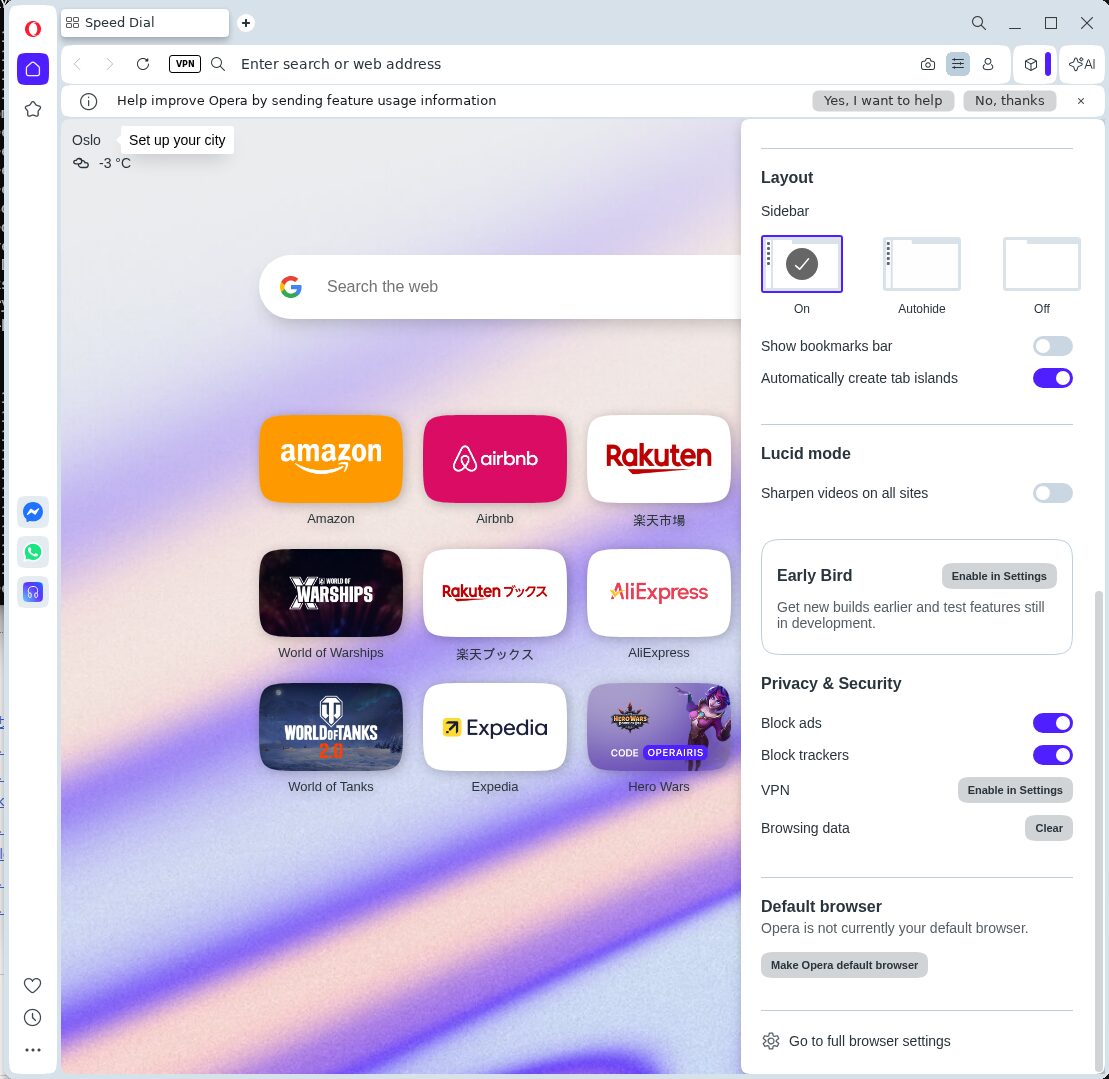
- Click the three horizontal lines in the upper right to open Easy setup.
- Go to Privacy & Security and click Enable in Settings under VPN

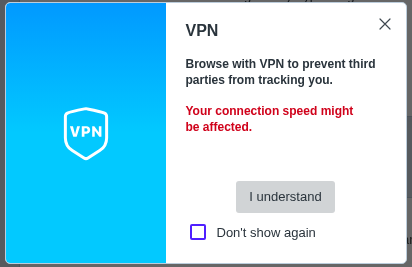
- Read the warning carefully and click “I understand"

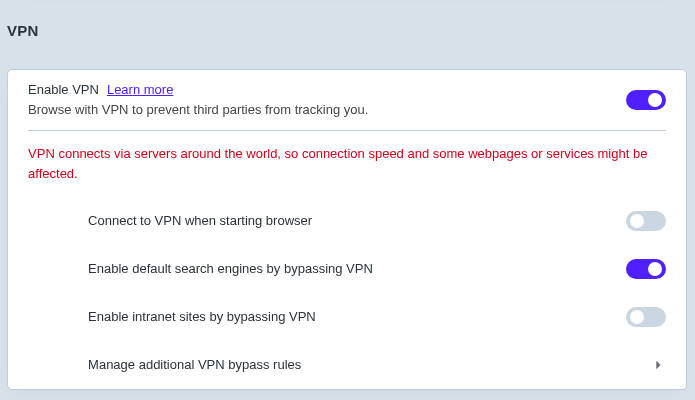
- Enable the feature: Turn the “VPN" switch ON.

- Select location: Click the “VPN" icon that appears on the left side of the address bar and change the “Virtual location." You can choose from Americas, Europe, Asia, and Optimal location.

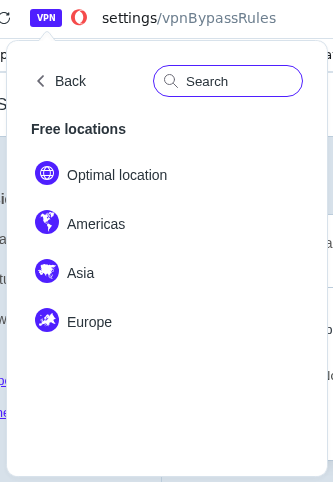
Select the region you want to test here (e.g., Americas, Europe).
Confirming That the IP Address Has Changed
In this state, try accessing an IP address lookup site (such as whatismyip.com). If the connection origin is identified as your selected region (e.g., United States) instead of “Japan," you have succeeded. The website will now treat you as an “overseas visitor."
Compliance in Technical Verification
While this technology is powerful, let’s also clarify the precautions for its use.
Summary: Having a “Anywhere Door" Ready in WSL
Setting up this environment takes only a few minutes. Rather than using Opera as your everyday browser, keep it installed in WSL as a “dedicated tool for checking network behavior." This is the style recommended by Nando Kobo.
- Keeps Windows clean: A sandbox environment that does not affect your main setup.
- Zero cost: No paid VPN subscription required.
- Instant verification: A single command allows you to simulate access from anywhere in the world.
Whenever you wonder, “How does this look from overseas?", having this environment will give you an immediate answer. Be sure to add it to your WSL toolbox.