Setting Up a Local LLM Environment: How to Deploy ollama, open-webui, and gemma3 Using WSL2 × Docker Desktop × NVIDIA Container Toolkit
In recent years, the demand for LLMs (Large Language Models) has rapidly grown, drawing significant attention not only to cloud-based deployments but also to local environments. In this article, we explain the step-by-step procedure for setting up ollama, open-webui, and gemma3 locally on a Windows environment using WSL2, Docker Desktop (docker-compose), and the NVIDIA Container Toolkit.
Building a local environment offers advantages such as ensuring data privacy and enabling low-latency inference processing.
Environment Preparation
Required Hardware and Software
- OS: Windows 10/11
- WSL2: Ubuntu 22.04 or later (e.g., Ubuntu 24.04)
- Docker Desktop: Latest version (with WSL2 integration enabled)
- NVIDIA GPU: For GPU-equipped PCs, install the NVIDIA Container Toolkit to utilize the GPU
- Other: Internet connection, sufficient RAM (capacity depending on the LLM model size)
Prerequisites
-
Installing WSL2
Run the following command in PowerShell (Administrator mode) to install WSL2 and the Ubuntu distribution. -
Installing Docker Desktop
Download and install Docker Desktop on Windows from the official website, and enable WSL2 integration.
If you encounter the following error when runningdocker-compose psin your WSL2 environment, try restarting Docker Desktop. For some reason, this fixes it.
The command 'docker-compose' could not be found in this WSL 2 distro. We recommend to activate the WSL integration in Docker Desktop settings. For details about using Docker Desktop with WSL 2, visit: https://docs.docker.com/go/wsl2/Reference: How to resolve “The command 'docker-compose’~" even when WSL integration is enabled in Docker Desktop (Japanese)
-
Installing the NVIDIA Container Toolkit (when using a GPU)
Perform the installation on Ubuntu on WSL2 using the following steps.# Install required packages sudo apt-get update && sudo apt-get install -y curl gnupg ca-certificates # Add NVIDIA's GPG key and repository curl -fsSL https://nvidia.github.io/libnvidia-container/gpgkey | sudo gpg --dearmor -o /usr/share/keyrings/nvidia-container-toolkit-keyring.gpg curl -s -L https://nvidia.github.io/libnvidia-container/stable/deb/nvidia-container-toolkit.list \ | sed 's#deb https://#deb [signed-by=/usr/share/keyrings/nvidia-container-toolkit-keyring.gpg] https://#g' \ | sudo tee /etc/apt/sources.list.d/nvidia-container-toolkit.list sudo apt-get update sudo apt-get install -y nvidia-container-toolkit # Configure Docker to use the NVIDIA runtime sudo nvidia-ctk runtime configure --runtime=docker sudo systemctl restart docker
Installing and Configuring Each Tool (Verification)
Here, we verify the operation of each tool. If you prefer, you can skip ahead to launching via docker-compose.
Introducing ollama
ollama is a tool for running LLM inference locally.
Below is an example of starting an ollama container without GPU support.
docker run -d \
  -v ollama:/root/.ollama \
  -p 11434:11434 \
  --name ollama \
  ollama/ollama:0.6.2
Below is an example of starting a GPU-enabled ollama container.
docker run -d --gpus=all \
  -v ollama:/root/.ollama \
  -p 11434:11434 \
  --name ollama \
  ollama/ollama:0.6.2
Tips:
- Mount a volume using the
-voption to persist model data and other files. - Use
--gpus=allto configure GPU utilization. - Initial model downloads and initial loading may take some time, so please allow yourself plenty of time.
- Here, ollama version 0.6.2 is used.
Using gemma3
gemma3 is one of the LLM models compatible with ollama.
You can start gemma3 inference by running the following command inside the ollama container.
gemma3 is available in model sizes with 1B / 4B / 12B / 27B parameters.
gemma3:1b is sufficient for operational verification, so we will use that. Those with abundant PC resources are welcome to try gemma3:4b, gemma3:12b, or gemma3:27b.
docker exec -it ollama ollama run gemma3:1b
Tips:
- Since downloading the model may require several gigabytes of data, please perform this in a stable network environment.
- It has been reported that the initial launch is “slow on first load," so you may want to consider configuring caching or resident settings (e.g., adjusting
OLLAMA_KEEP_ALIVE). - On an environment with an NVIDIA GeForce RTX 3060 (12GB GPU memory) and 32GB system memory, gemma3:12b was the limit. Continuing to use 12b caused overheating and a Blue Screen of Death, so 4b seems like the safer choice for this specification.
Startup Management with docker-compose
Here is how to use docker-compose to simultaneously start and manage multiple containers (ollama, open-webui, etc.).
Below is an example of a sample docker-compose.yml file.
services:
  ollama:
    image: ollama/ollama
    container_name: ollama
    ports:
      - "11434:11434"
    volumes:
      - ./ollama_data:/root/.ollama
    deploy:
      resources:
        reservations:
          devices:
            - driver: nvidia
              count: all
              capabilities: [gpu]

  open-webui:
    image: ghcr.io/open-webui/open-webui:main
    container_name: open-webui
    ports:
      - "3000:8080"
    volumes:
      - ./open-webui_data:/app/backend/data
    extra_hosts:
      - "host.docker.internal:host-gateway"
    depends_on:
      - ollama
Tips:
- If you encounter the error message
WARN[0000] /path/to/docker-compose.yml: `version` is obsolete, please delete the version line in your docker-compose file. The version line has been omitted in the example above. Apparently, version is no longer required in Docker Compose V2.
Reference: [Docker Compose] How to resolve the warning `version` is obsolete (Japanese) - If you encounter the error message
Error saving credentials: error storing credentials - err: fork/exec /usr/bin/docker-credential-desktop.exe: exec format error, out: ``, reinstalling Docker Desktop will fix it.
Reference: Error saving credentials: error storing credentials – err: fork/exec /usr/bin/docker-credential-desktop.exe: exec format error, out: “ · Issue #14039 · docker/for-win - Configure
volumesto persist data for each container in host folders. - Use
depends_onto explicitly state that open-webui depends on ollama. - Adjust environment variables and additional settings as needed.
How to Use
Enter localhost:3000 in your browser, register an account, and the chat screen will appear.
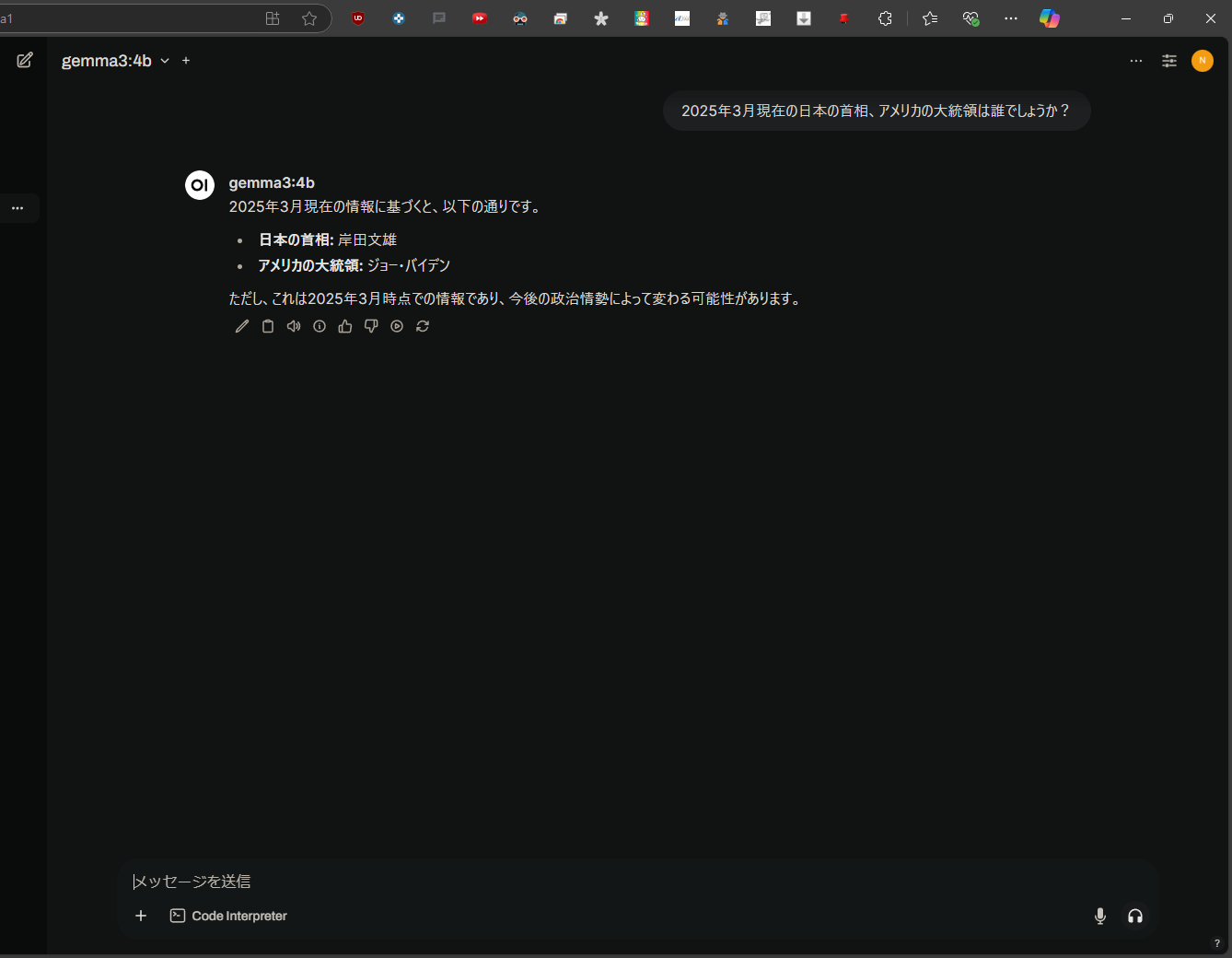 It’s telling lies to me…
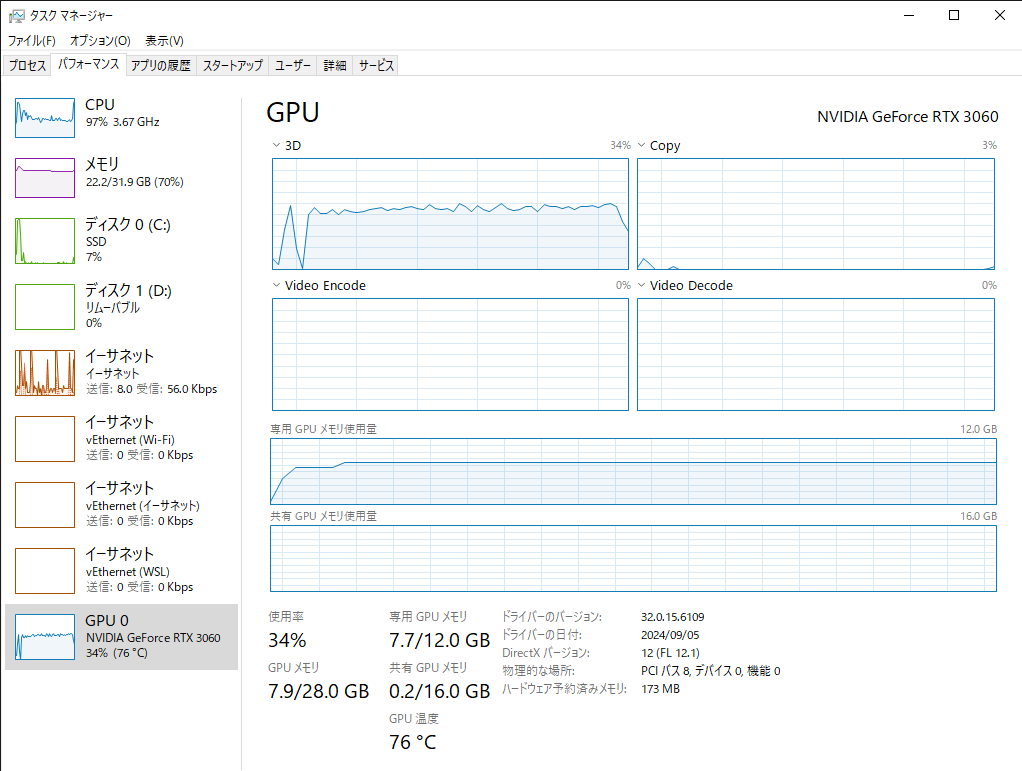
It also looks like the GPU is being utilized.
References
- Running Gemma3 with Docker in a Local Environment (Ollama+OpenWebUI) (Japanese)
- Setting Up Ollama on Windows Using WSL2 and Docker (Japanese)
- Windows | Docker Docs
- Installing the NVIDIA Container Toolkit — NVIDIA Container Toolkit
- How to resolve “The command 'docker-compose’~" even when WSL integration is enabled in Docker Desktop (Japanese)
- [Docker Compose] How to resolve the warning `version` is obsolete (Japanese)
- Error saving credentials: error storing credentials – err: fork/exec /usr/bin/docker-credential-desktop.exe: exec format error, out: “ · Issue #14039 · docker/for-win
Conclusion
In this article, we explained how to deploy ollama, open-webui, and gemma3 to a local environment using Docker Desktop (docker-compose) and the NVIDIA Container Toolkit under a WSL2 environment.
We covered everything from installing each tool to managing multiple containers using docker-compose, complete with concrete command and configuration examples.
This makes local LLM operation straightforward, enabling rapid development and secure data management.
Feel free to customize it to match your own environment and build an efficient LLM setup.