KiCad Freezing? The IME Might Be the Cause!
Have you ever experienced frustrating freezes while searching for symbols or configuring settings in the electronic circuit design software “KiCad"? Actually, the cause of this problem may lie in the Japanese Input Method Editor (IME).
KiCad Freezing Issues
When using KiCad, it may suddenly freeze in situations such as the following:
- When trying to search for symbols
- When trying to add libraries
- When attempting to input certain text
Once it freezes, you have no choice but to force-quit KiCad, which significantly reduces work efficiency.
Could the IME Be the Cause?
As a result of investigation, it was found that the cause of this freezing lies in Windows’ “Microsoft IME". This issue seems particularly prone to occurring in environments using the latest version of Microsoft IME.
Solution: Use the Previous Version of Microsoft IME
Fortunately, this issue can be avoided by changing the IME settings. Try changing your settings to use the previous version of Microsoft IME by following the steps below.
- Open Windows Settings
- Open “Settings" (the gear icon) from the Start Menu.
- Open IME Settings
- Go to “Time & language" > “Language & region" > “Japanese" settings.
- Proceed to Microsoft IME Advanced Settings
- Select “Microsoft IME" within the “Keyboard" section.
- Click on “General".
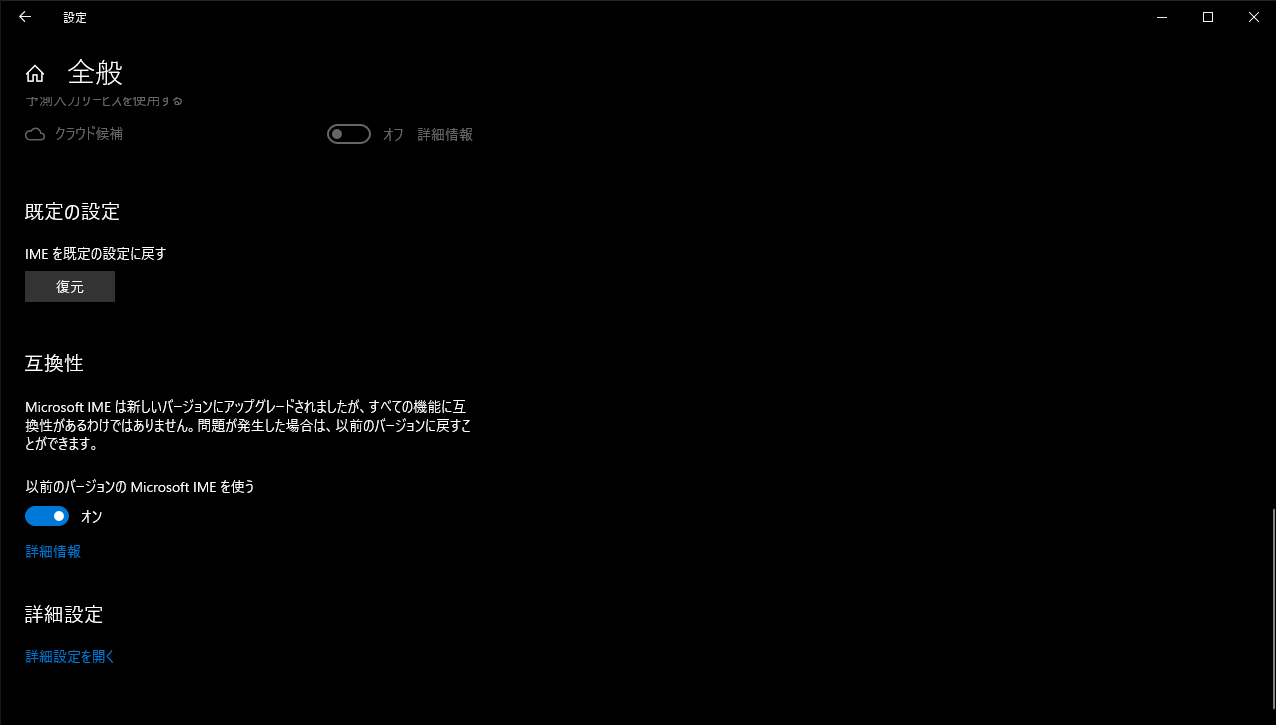
- Change Setting to Use the Previous Version of IME
- Locate the “Compatibility" section and turn on “Use previous version of Microsoft IME".

- Locate the “Compatibility" section and turn on “Use previous version of Microsoft IME".
Summary
KiCad freezing issues may be caused by the Japanese input system (Microsoft IME). You can avoid this problem by using the previous version of Microsoft IME instead of the latest one.
If you are struggling with KiCad freezes, please be sure to try changing this setting!