Integrating CSI Camera ON/OFF Control Features Utilizing PiKVM’s Standard Extension Specifications
In our PiKVM environment built on a Raspberry Pi 3 Model B, we added a CSI-connected camera module to check the status of the front LED indicators and physical switches on the server. After introducing ustreamer-csi as the video streaming daemon, video capture and streaming functioned normally.
However, the Raspberry Pi 3 has limitations in CPU performance and available memory (approx. 1GB). In addition to PiKVM’s native HDMI capture processing, keeping the CSI camera’s video streaming (such as MJPEG encoding) running continuously in the background can cause SoC heating and unnecessary resource consumption.
Concept of On-Demand Power Control to Avoid Continuous Powering
For the purpose of checking the server’s physical status, there is no need to monitor the camera feed continuously. An on-demand operation—starting the camera only when needed, such as during server boot-up or status checks when troubleshooting, and stopping it immediately afterwards—is the most logical approach.
To achieve this while eliminating the hassle of manually executing commands via SSH, we planned to build an integrated interface that allows starting, stopping, and checking the camera stream with a single click directly from the PiKVM browser interface.
Achieving Both 1.5W Standby Power Reduction and Update Resilience
For this implementation, we set the following three items as quantitative goals and design requirements:
- Reduction of Standby Power: Keeping the system-wide power consumption down to the baseline of 1.5W when the camera is stopped, cutting off extra power consumption during standby.
- Single-Screen Completeness: Completing status checks (LED lamp display), start/stop operations, and navigation to the video stream within a single UI.
- Maintenance of Update Resilience: Eliminating the risk of configuration loss due to package updates (pacman -Syu) by avoiding any modifications to the PiKVM core code (JavaScript and HTML) and fully complying with the standard plugin structure.
Power Consumption When the Screen Is Not Displayed and Undocumented Extension Specifications
As the design progressed, hardware and software challenges that needed to be addressed became apparent.
Power Consumption Occurring Even When the Screen Is Closed
Using a USB tester to measure the power consumption of the Raspberry Pi 3 yielded the following results:
- When ustreamer-csi is stopped: Approx. 1.5W
- When ustreamer-csi is running (browser not connected): Approx. 2.3 to 2.4W
- While viewing the video stream (connected to port 8081): Approx. 2.9 to 3.0W
Even without the stream window open in a browser, simply having the service enabled continuously consumed about 0.8 to 0.9W of power due to supplying power to the CMOS sensor and standby processing by the ISP (Image Signal Processor). Controlling the process itself to stop is essential to suppress heat generation and power loss.
Balancing Undocumented Extension Specifications with Maintainability
PiKVM’s official documentation does not detail development procedures for adding custom applications as extensions to the top screen. Taking the easy approach of directly modifying the frontend (main.js or index.html) carries the risk of files being overwritten and initialized during core updates.
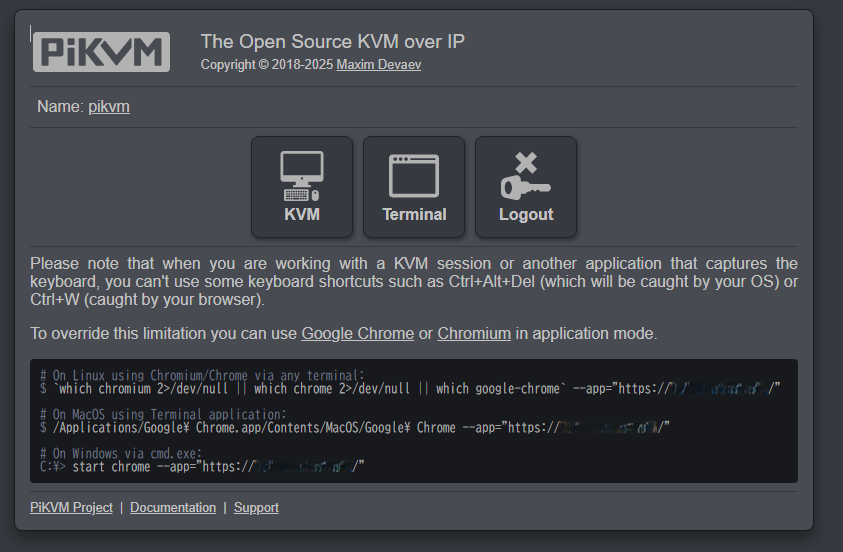
Therefore, upon analyzing PiKVM’s internal structure, we discovered the existence of an extras plugin mechanism similar to standard features like webterm and vnc. By following this pattern, we adopted a policy of integrating the functionality safely without modifying any core code.
Integrating the Web Controller Utilizing PiKVM’s Standard Extras Structure
The implementation is entirely self-contained within PiKVM. We configured the environment using the following steps.
Configuring Service Control Privileges (sudoers)
To allow starting, stopping, and checking the status of ustreamer-csi from the web management app without a password, we deploy a dedicated sudoers configuration.
rw
vim /etc/sudoers.d/kvmd-camera-api
The contents of the configuration file /etc/sudoers.d/kvmd-camera-api are as follows.
root ALL=(root) NOPASSWD: /usr/bin/systemctl start ustreamer-csi, /usr/bin/systemctl stop ustreamer-csi, /usr/bin/systemctl is-active ustreamer-csi
Grant the appropriate permissions.
chmod 440 /etc/sudoers.d/kvmd-camera-api
Creating a Lightweight Web Controller (Python)
We create camera_manager.py using only Python standard libraries to handle web page serving and backend control in a single file. There are no dependencies on external libraries.
vim /usr/local/bin/camera_manager.py
Write the following code into the file /usr/local/bin/camera_manager.py.
import http.server
import subprocess
import json
PORT = 8082
HTML_PAGE = """<!DOCTYPE html>
<html lang="ja">
<head>
<meta charset="UTF-8">
<meta name="viewport" content="width=device-width, initial-scale=1.0">
<title>PiKVM Camera Manager</title>
<img src="data:image/gif;base64,R0lGODlhAQABAIAAAAAAAP///yH5BAEAAAAALAAAAAABAAEAAAIBRAA7" data-wp-preserve="%3Cstyle%3E%0A%20%20%20%20%20%20%20%20body%20%7B%0A%20%20%20%20%20%20%20%20%20%20%20%20font-family%3A%20-apple-system%2C%20BlinkMacSystemFont%2C%20%22Segoe%20UI%22%2C%20Roboto%2C%20sans-serif%3B%0A%20%20%20%20%20%20%20%20%20%20%20%20background-color%3A%20%231e1e24%3B%0A%20%20%20%20%20%20%20%20%20%20%20%20color%3A%20%23e0e0e0%3B%0A%20%20%20%20%20%20%20%20%20%20%20%20display%3A%20flex%3B%0A%20%20%20%20%20%20%20%20%20%20%20%20justify-content%3A%20center%3B%0A%20%20%20%20%20%20%20%20%20%20%20%20align-items%3A%20center%3B%0A%20%20%20%20%20%20%20%20%20%20%20%20min-height%3A%20100vh%3B%0A%20%20%20%20%20%20%20%20%20%20%20%20margin%3A%200%3B%0A%20%20%20%20%20%20%20%20%7D%0A%20%20%20%20%20%20%20%20.card%20%7B%0A%20%20%20%20%20%20%20%20%20%20%20%20background-color%3A%20%232b2b36%3B%0A%20%20%20%20%20%20%20%20%20%20%20%20padding%3A%2030px%3B%0A%20%20%20%20%20%20%20%20%20%20%20%20border-radius%3A%2012px%3B%0A%20%20%20%20%20%20%20%20%20%20%20%20box-shadow%3A%200%208px%2024px%20rgba(0%2C0%2C0%2C0.4)%3B%0A%20%20%20%20%20%20%20%20%20%20%20%20width%3A%20340px%3B%0A%20%20%20%20%20%20%20%20%20%20%20%20text-align%3A%20center%3B%0A%20%20%20%20%20%20%20%20%7D%0A%20%20%20%20%20%20%20%20h1%20%7B%0A%20%20%20%20%20%20%20%20%20%20%20%20font-size%3A%2020px%3B%0A%20%20%20%20%20%20%20%20%20%20%20%20margin-bottom%3A%2020px%3B%0A%20%20%20%20%20%20%20%20%20%20%20%20color%3A%20%23ffffff%3B%0A%20%20%20%20%20%20%20%20%7D%0A%20%20%20%20%20%20%20%20.status-container%20%7B%0A%20%20%20%20%20%20%20%20%20%20%20%20display%3A%20flex%3B%0A%20%20%20%20%20%20%20%20%20%20%20%20align-items%3A%20center%3B%0A%20%20%20%20%20%20%20%20%20%20%20%20justify-content%3A%20center%3B%0A%20%20%20%20%20%20%20%20%20%20%20%20gap%3A%2010px%3B%0A%20%20%20%20%20%20%20%20%20%20%20%20margin-bottom%3A%2025px%3B%0A%20%20%20%20%20%20%20%20%20%20%20%20font-size%3A%2016px%3B%0A%20%20%20%20%20%20%20%20%20%20%20%20font-weight%3A%20bold%3B%0A%20%20%20%20%20%20%20%20%7D%0A%20%20%20%20%20%20%20%20.lamp%20%7B%0A%20%20%20%20%20%20%20%20%20%20%20%20width%3A%2014px%3B%0A%20%20%20%20%20%20%20%20%20%20%20%20height%3A%2014px%3B%0A%20%20%20%20%20%20%20%20%20%20%20%20border-radius%3A%2050%25%3B%0A%20%20%20%20%20%20%20%20%20%20%20%20background-color%3A%20%23555%3B%0A%20%20%20%20%20%20%20%20%20%20%20%20box-shadow%3A%200%200%204px%20rgba(0%2C0%2C0%2C0.5)%3B%0A%20%20%20%20%20%20%20%20%20%20%20%20transition%3A%20background-color%200.3s%2C%20box-shadow%200.3s%3B%0A%20%20%20%20%20%20%20%20%7D%0A%20%20%20%20%20%20%20%20.lamp.active%20%7B%0A%20%20%20%20%20%20%20%20%20%20%20%20background-color%3A%20%2328a745%3B%0A%20%20%20%20%20%20%20%20%20%20%20%20box-shadow%3A%200%200%2010px%20%2328a745%3B%0A%20%20%20%20%20%20%20%20%7D%0A%20%20%20%20%20%20%20%20.lamp.inactive%20%7B%0A%20%20%20%20%20%20%20%20%20%20%20%20background-color%3A%20%23dc3545%3B%0A%20%20%20%20%20%20%20%20%20%20%20%20box-shadow%3A%200%200%2010px%20%23dc3545%3B%0A%20%20%20%20%20%20%20%20%7D%0A%20%20%20%20%20%20%20%20.btn-group%20%7B%0A%20%20%20%20%20%20%20%20%20%20%20%20display%3A%20flex%3B%0A%20%20%20%20%20%20%20%20%20%20%20%20gap%3A%2010px%3B%0A%20%20%20%20%20%20%20%20%20%20%20%20margin-bottom%3A%2020px%3B%0A%20%20%20%20%20%20%20%20%7D%0A%20%20%20%20%20%20%20%20button%20%7B%0A%20%20%20%20%20%20%20%20%20%20%20%20flex%3A%201%3B%0A%20%20%20%20%20%20%20%20%20%20%20%20padding%3A%2012px%3B%0A%20%20%20%20%20%20%20%20%20%20%20%20border%3A%20none%3B%0A%20%20%20%20%20%20%20%20%20%20%20%20border-radius%3A%206px%3B%0A%20%20%20%20%20%20%20%20%20%20%20%20font-size%3A%2014px%3B%0A%20%20%20%20%20%20%20%20%20%20%20%20font-weight%3A%20bold%3B%0A%20%20%20%20%20%20%20%20%20%20%20%20cursor%3A%20pointer%3B%0A%20%20%20%20%20%20%20%20%20%20%20%20transition%3A%20opacity%200.2s%3B%0A%20%20%20%20%20%20%20%20%7D%0A%20%20%20%20%20%20%20%20button%3Ahover%20%7B%0A%20%20%20%20%20%20%20%20%20%20%20%20opacity%3A%200.85%3B%0A%20%20%20%20%20%20%20%20%7D%0A%20%20%20%20%20%20%20%20.btn-on%20%7B%0A%20%20%20%20%20%20%20%20%20%20%20%20background-color%3A%20%2328a745%3B%0A%20%20%20%20%20%20%20%20%20%20%20%20color%3A%20white%3B%0A%20%20%20%20%20%20%20%20%7D%0A%20%20%20%20%20%20%20%20.btn-off%20%7B%0A%20%20%20%20%20%20%20%20%20%20%20%20background-color%3A%20%23dc3545%3B%0A%20%20%20%20%20%20%20%20%20%20%20%20color%3A%20white%3B%0A%20%20%20%20%20%20%20%20%7D%0A%20%20%20%20%20%20%20%20.btn-stream%20%7B%0A%20%20%20%20%20%20%20%20%20%20%20%20display%3A%20block%3B%0A%20%20%20%20%20%20%20%20%20%20%20%20width%3A%20100%25%3B%0A%20%20%20%20%20%20%20%20%20%20%20%20box-sizing%3A%20border-box%3B%0A%20%20%20%20%20%20%20%20%20%20%20%20padding%3A%2012px%3B%0A%20%20%20%20%20%20%20%20%20%20%20%20background-color%3A%20%23007acc%3B%0A%20%20%20%20%20%20%20%20%20%20%20%20color%3A%20white%3B%0A%20%20%20%20%20%20%20%20%20%20%20%20text-decoration%3A%20none%3B%0A%20%20%20%20%20%20%20%20%20%20%20%20border-radius%3A%206px%3B%0A%20%20%20%20%20%20%20%20%20%20%20%20font-weight%3A%20bold%3B%0A%20%20%20%20%20%20%20%20%20%20%20%20font-size%3A%2014px%3B%0A%20%20%20%20%20%20%20%20%20%20%20%20transition%3A%20opacity%200.2s%3B%0A%20%20%20%20%20%20%20%20%7D%0A%20%20%20%20%20%20%20%20.btn-stream%3Ahover%20%7B%0A%20%20%20%20%20%20%20%20%20%20%20%20opacity%3A%200.85%3B%0A%20%20%20%20%20%20%20%20%7D%0A%20%20%20%20%3C%2Fstyle%3E" data-mce-resize="false" data-mce-placeholder="1" class="mce-object mce-object-style" width="20" height="20" alt="<style>" />
</head>
<body>
<div class="card">
<h1>PiKVM Camera Manager</h1>
<div class="status-container">
<div id="status-lamp" class="lamp"></div>
<span id="status-text">Checking...</span>
</div>
<div class="btn-group">
<button class="btn-on" onclick="sendAction('start')">Power ON</button>
<button class="btn-off" onclick="sendAction('stop')">Power OFF</button>
</div>
<a id="stream-link" class="btn-stream" href="#" target="_blank">Open Camera Stream</a>
</div>
<img src="data:image/gif;base64,R0lGODlhAQABAIAAAAAAAP///yH5BAEAAAAALAAAAAABAAEAAAIBRAA7" data-wp-preserve="%3Cscript%3E%0A%20%20%20%20%20%20%20%20const%20host%20%3D%20window.location.hostname%3B%0A%20%20%20%20%20%20%20%20document.getElementById('stream-link').href%20%3D%20'http%3A%2F%2F'%20%2B%20host%20%2B%20'%3A8081%2F'%3B%0A%0A%20%20%20%20%20%20%20%20function%20updateStatus()%20%7B%0A%20%20%20%20%20%20%20%20%20%20%20%20fetch('api%2Fstatus')%0A%20%20%20%20%20%20%20%20%20%20%20%20%20%20%20%20.then(res%20%3D%3E%20res.json())%0A%20%20%20%20%20%20%20%20%20%20%20%20%20%20%20%20.then(data%20%3D%3E%20%7B%0A%20%20%20%20%20%20%20%20%20%20%20%20%20%20%20%20%20%20%20%20const%20lamp%20%3D%20document.getElementById('status-lamp')%3B%0A%20%20%20%20%20%20%20%20%20%20%20%20%20%20%20%20%20%20%20%20const%20text%20%3D%20document.getElementById('status-text')%3B%0A%20%20%20%20%20%20%20%20%20%20%20%20%20%20%20%20%20%20%20%20if%20(data.active)%20%7B%0A%20%20%20%20%20%20%20%20%20%20%20%20%20%20%20%20%20%20%20%20%20%20%20%20lamp.className%20%3D%20'lamp%20active'%3B%0A%20%20%20%20%20%20%20%20%20%20%20%20%20%20%20%20%20%20%20%20%20%20%20%20text.innerText%20%3D%20'Active%20(Streaming)'%3B%0A%20%20%20%20%20%20%20%20%20%20%20%20%20%20%20%20%20%20%20%20%20%20%20%20text.style.color%20%3D%20'%2328a745'%3B%0A%20%20%20%20%20%20%20%20%20%20%20%20%20%20%20%20%20%20%20%20%7D%20else%20%7B%0A%20%20%20%20%20%20%20%20%20%20%20%20%20%20%20%20%20%20%20%20%20%20%20%20lamp.className%20%3D%20'lamp%20inactive'%3B%0A%20%20%20%20%20%20%20%20%20%20%20%20%20%20%20%20%20%20%20%20%20%20%20%20text.innerText%20%3D%20'Inactive%20(Stopped)'%3B%0A%20%20%20%20%20%20%20%20%20%20%20%20%20%20%20%20%20%20%20%20%20%20%20%20text.style.color%20%3D%20'%23dc3545'%3B%0A%20%20%20%20%20%20%20%20%20%20%20%20%20%20%20%20%20%20%20%20%7D%0A%20%20%20%20%20%20%20%20%20%20%20%20%20%20%20%20%7D)%0A%20%20%20%20%20%20%20%20%20%20%20%20%20%20%20%20.catch(()%20%3D%3E%20%7B%0A%20%20%20%20%20%20%20%20%20%20%20%20%20%20%20%20%20%20%20%20const%20text%20%3D%20document.getElementById('status-text')%3B%0A%20%20%20%20%20%20%20%20%20%20%20%20%20%20%20%20%20%20%20%20text.innerText%20%3D%20'Connection%20Error'%3B%0A%20%20%20%20%20%20%20%20%20%20%20%20%20%20%20%20%20%20%20%20text.style.color%20%3D%20'%23aaa'%3B%0A%20%20%20%20%20%20%20%20%20%20%20%20%20%20%20%20%7D)%3B%0A%20%20%20%20%20%20%20%20%7D%0A%0A%20%20%20%20%20%20%20%20function%20sendAction(action)%20%7B%0A%20%20%20%20%20%20%20%20%20%20%20%20fetch('api%2F'%20%2B%20action%2C%20%7B%20method%3A%20'POST'%20%7D)%0A%20%20%20%20%20%20%20%20%20%20%20%20%20%20%20%20.then(()%20%3D%3E%20%7B%0A%20%20%20%20%20%20%20%20%20%20%20%20%20%20%20%20%20%20%20%20setTimeout(updateStatus%2C%20500)%3B%0A%20%20%20%20%20%20%20%20%20%20%20%20%20%20%20%20%7D)%3B%0A%20%20%20%20%20%20%20%20%7D%0A%0A%20%20%20%20%20%20%20%20updateStatus()%3B%0A%20%20%20%20%20%20%20%20setInterval(updateStatus%2C%203000)%3B%0A%20%20%20%20%3C%2Fscript%3E" data-mce-resize="false" data-mce-placeholder="1" class="mce-object mce-object-script" width="20" height="20" alt="<script>" />
</body>
</html>
"""
class CameraManagerHandler(http.server.BaseHTTPRequestHandler):
def do_GET(self):
if self.path == '/' or self.path == '/index.html':
self.send_response(200)
self.send_header('Content-Type', 'text/html; charset=utf-8')
self.end_headers()
self.wfile.write(HTML_PAGE.encode('utf-8'))
elif self.path == '/api/status':
res = subprocess.run(['sudo', 'systemctl', 'is-active', 'ustreamer-csi'], stdout=subprocess.PIPE, text=True)
is_active = (res.stdout.strip() == 'active')
self.send_response(200)
self.send_header('Content-Type', 'application/json')
self.end_headers()
self.wfile.write(json.dumps({'active': is_active}).encode('utf-8'))
else:
self.send_response(404)
self.end_headers()
def do_POST(self):
if self.path == '/api/start':
subprocess.run(['sudo', 'systemctl', 'start', 'ustreamer-csi'])
self.send_response(200)
self.end_headers()
elif self.path == '/api/stop':
subprocess.run(['sudo', 'systemctl', 'stop', 'ustreamer-csi'])
self.send_response(200)
self.end_headers()
else:
self.send_response(404)
self.end_headers()
def log_message(self, format, *args):
return
if __name__ == '__main__':
server = http.server.HTTPServer(('0.0.0.0', PORT), CameraManagerHandler)
server.serve_forever()
Grant execution permissions.
chmod +x /usr/local/bin/camera_manager.py
Making the Service Persistent via systemd
To have the script run automatically at OS startup, define a systemd service.
vim /etc/systemd/system/camera-manager.service
The contents of the configuration file /etc/systemd/system/camera-manager.service are as follows.
[Unit]
Description=PiKVM CSI Camera Manager Web App
After=network.target

[Service]
ExecStart=/usr/bin/python3 /usr/local/bin/camera_manager.py
Restart=always
User=root

[Install]
WantedBy=multi-user.target
Enable and start the service.
systemctl daemon-reload
systemctl enable --now camera-manager
Placement in PiKVM’s Standard Extras Directory
Create the PiKVM plugin directory /usr/share/kvmd/extras/camera-manager and place the necessary definition files.
mkdir -p /usr/share/kvmd/extras/camera-manager
Meta Information File (manifest.yaml)
vim /usr/share/kvmd/extras/camera-manager/manifest.yaml
name: Camera Manager description: CSI Camera Power &amp;amp;amp;amp; Stream Controller icon: extras/camera-manager/camera.svg path: extras/camera-manager daemon: camera-manager place: 15
Dedicated Icon (camera.svg)
vim /usr/share/kvmd/extras/camera-manager/camera.svg
<svg xmlns="http://www.w3.org/2000/svg" viewBox="0 0 512 512" fill="#888888">
    <path d="M149.1 64.8L138.7 96H64C28.7 96 0 124.7 0 160V416c0 35.3 28.7 64 64 64H448c35.3 64 64 64 64-64V160c0-35.3-28.7-64-64-64H373.3L362.9 64.8C356.4 45.2 338.1 32 317.4 32H194.6c-20.7 0-39 13.2-45.5 32.8zM256 192a96 96 0 1 1 0 192 96 96 0 1 1 0-192z"/>
</svg>
Nginx Reverse Proxy Configuration (nginx.ctx-server.conf)
Define static file serving for the SVG icon and a reverse proxy to the web management screen (port 8082).
vim /usr/share/kvmd/extras/camera-manager/nginx.ctx-server.conf
location = /extras/camera-manager/camera.svg {
    alias /usr/share/kvmd/extras/camera-manager/camera.svg;
    include /etc/kvmd/nginx/loc-login.conf;
}

location /extras/camera-manager {
    rewrite ^/extras/camera-manager$ /extras/camera-manager/ permanent;
    proxy_pass http://127.0.0.1:8082/;
    include /etc/kvmd/nginx/loc-proxy.conf;
    include /etc/kvmd/nginx/loc-login.conf;
    include /etc/kvmd/nginx/loc-nocache.conf;
}
Applying and Protecting the Filesystem
Restart the PiKVM daemon and Nginx, and return the filesystem to read-only.
systemctl restart kvmd kvmd-nginx
ro
Measured Power Reduction and UI
Through the above setup, the “Camera Manager" icon is now automatically rendered on PiKVM’s top screen with a design matching the standard tiles.
| # | Status | Power Consumption (Measured) |
| 1 | ustreamer-csi stopped (OFF) | 1.5 to 1.6W |
| 2 | ustreamer-csi running (ON) | 2.3 to 2.4 W |
| 3 | Stream screen displayed | 2.9 to 3.0 W |
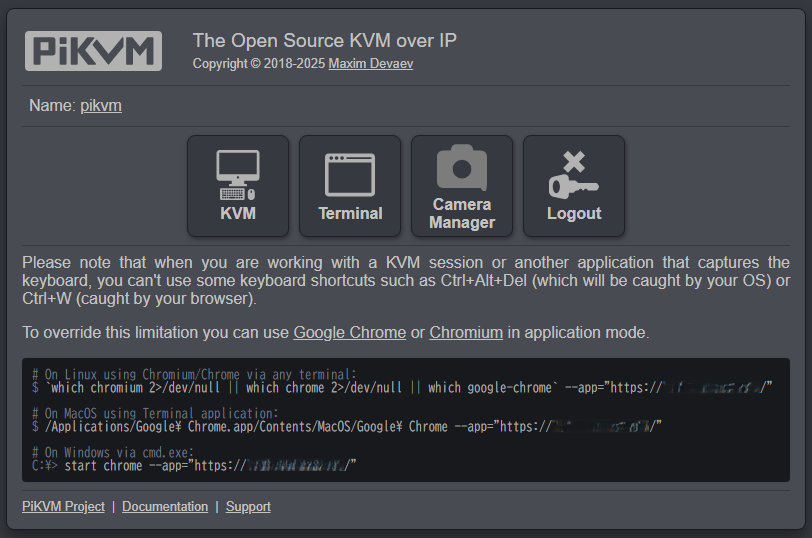
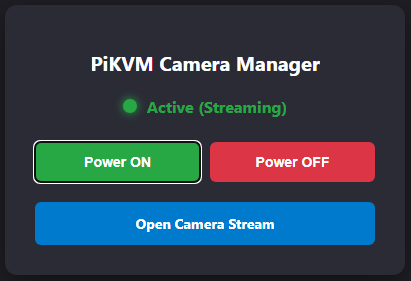
Clicking the tile on the top screen opens the /extras/camera-manager/ management panel. Pressing “Power ON" immediately changes the status lamp to green (Active), and the video stream (port 8081) can be checked from “Open Camera Stream". After checking, pressing “Power OFF" stops the service, reducing power consumption down to the 1.5W baseline.
Because no changes were made to PiKVM’s core JavaScript or HTML, concerns about configuration loss from future updates are eliminated, establishing a safe on-demand monitoring environment while preserving Raspberry Pi 3 resources.
 https://amzn.to/4gRoQ2K
Conclusion
When introducing a CSI camera to PiKVM on a Raspberry Pi 3, there was an issue where about 0.8 to 0.9W of power was continuously consumed even when the screen was not displayed. To solve this, we created a lightweight Python web controller and integrated it via PiKVM’s standard extras extension mechanism and an Nginx proxy. We built an environment that allows starting, stopping, and stream checking with a single click from the top screen without modifying core code, successfully achieving both standby power suppression down to 1.5W and high maintainability.