Automating PCB Design to Milling G-Code Generation with Generative AI
In our previous article, “Automating PCB Design with Generative AI (Gemini/Antigravity) and KiCad," we introduced our efforts to leverage LLMs to assist with schematic creation and PCB layout within KiCad.
However, milling custom circuit boards (PCB Milling) on a CNC milling machine requires a CAM process to convert Gerber data into cutting “G-code." While various tools exist for G-code generation, Nando Kobo has long favored pcb2gcode, a high-performance CLI tool written in C++.
Traditionally, this work required opening a terminal and manually specifying tool diameters and feed rates. To automate this entire process using generative AI, the author personally implemented native C++ MCP (Model Context Protocol) features in pcb2gcode and successfully got it officially merged into the upstream repository (PR #910).
While the behind-the-scenes stories of the development will be detailed in a separate article at a later date, this post explains the practical procedure for using this merged feature to seamlessly automate the entire workflow from KiCad PCB design to G-code generation using AI.
Managing and Controlling Two MCP Servers in a Single AI Session
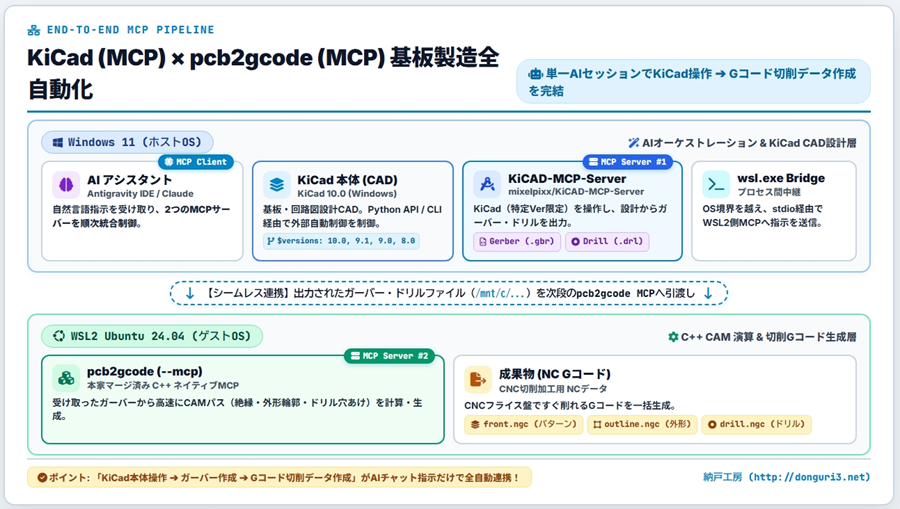
The goal of this article is to use an AI assistant on Windows 11 (such as Antigravity IDE or Claude) as the command center (MCP client), linking two MCP servers to build a complete end-to-end pipeline.
Specifically, the KiCad-MCP-Server (developed by mixelpixx), which runs natively on Windows, outputs Gerber and drill files from the KiCad application itself, and then seamlessly passes the generated files to pcb2gcode (--mcp) running on WSL2 (Ubuntu 24.04 LTS). Simply by issuing natural language instructions for cutting conditions in the chat window, users can complete everything from exporting PCB data to generating G-code for CNC machining within a single session.
The Barriers of Inter-Process Communication and Path Resolution Across Heterogeneous OS Environments
The technical challenge in achieving this integration lies in process cooperation across different OS environments: Windows and WSL2.
Because pcb2gcode depends heavily on Linux libraries such as Boost, gerbv, glibmm, and libgeos, building it natively on Windows is extremely difficult. Consequently, pcb2gcode must run inside WSL2.
We need to configure a setup where the Windows-side MCP client acts as a process bridge via wsl.exe, smoothly sending and receiving JSON-RPC 2.0 messages via standard input/output (stdio). Furthermore, a design is required that allows the AI to accurately handle Windows file paths output by KiCad in the /mnt/c/... format that the WSL2 side can interpret.
Setting Up the WSL2 Environment and End-to-End MCP Integration Pipeline
To solve these challenges, we adopt an architecture where KiCad and the MCP client are placed on the Windows 11 side, pcb2gcode is placed on the WSL2 side, and it is relayed via wsl.exe.
Building pcb2gcode on WSL2 (Ubuntu 24.04)
Open the WSL2 terminal, fetch the source code from the official repository, and run the setup script.
# Clone the repository
git clone https://github.com/pcb2gcode/pcb2gcode.git
cd pcb2gcode

# Install dependencies for Ubuntu and run the build
chmod +x setup-ubuntu.sh
./setup-ubuntu.sh
The script automatically installs the necessary dependent packages and compiles the code, placing the MCP-compatible binary at /usr/local/bin/pcb2gcode.
Below is the result of running setup-ubuntu.sh in the /pcb2gcode directory.
=== Build Complete! ===
Binary location: /pcb2gcode/build/pcb2gcode
Generated MCP configuration: /pcb2gcode/mcp-config.json

Copy the contents of ../mcp-config.json into your MCP client configuration (e.g., mcp.json or claude_desktop_config.json).

$ cat mcp-config.json
{
  "mcpServers": {
    "pcb2gcode": {
      "command": "wsl.exe",
      "args": [
        "-e",
        "/pcb2gcode/build/pcb2gcode",
        "--mcp"
      ]
    }
  }
}
MCP Client Configuration
Register both the KiCad operation server and the pcb2gcode server via WSL2 in the MCP client (such as Antigravity IDE) configuration file (mcp_config.json).
{
  "mcpServers": {
    "kicad": {
      "command": "node",
      "args": [
        "C:\path\to\KiCad-MCP-Server\dist\index.js"
      ],
      "env": {
        "PYTHONPATH": "C:\Program Files\KiCad\10.0\lib\python3\dist-packages",
        "KICAD_AUTO_LAUNCH": "true",
        "LOG_LEVEL": "info"
      }
    },
    "pcb2gcode": {
      "command": "wsl.exe",
      "args": [
        "-e",
        "/path/to/pcb2gcode/build/pcb2gcode",
        "--mcp"
      ]
    }
  }
}
This configuration allows the AI assistant to freely invoke KiCad control commands and the pcb2gcode_run tool within WSL2 as needed.
Batch Processing Instructions via Natural Language
Please export Gerber and drill files from the currently open KiCad project, and based on that data, generate cutting G-code under the following conditions.
Output destination: /mnt/c/cnc_output/
- Front pattern: Tool diameter 0.1mm, cutting depth 0.04mm, feed rate 120mm/min
- Outline milling: Tool diameter 1.0mm, cutting depth 1.6mm (multiple passes)
- Drilling: Output enabled
Demonstration of Batch G-Code Generation from PCB Design via Natural Language Instructions
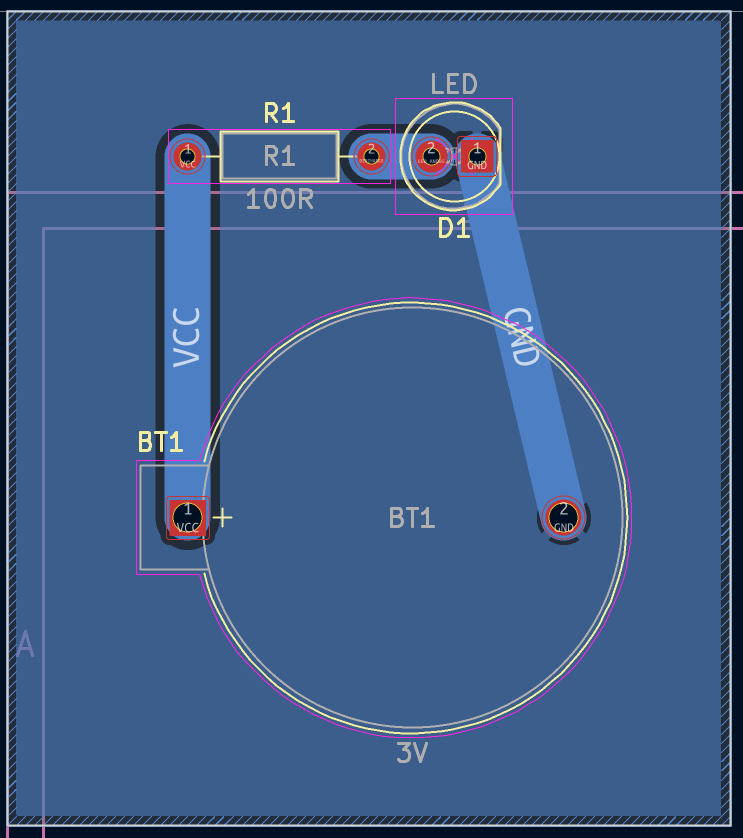
Upon sending the prompt, the AI assistant first invoked the kicad server to write out the Gerber files (.gbr) and drill files (.drl) to the specified directory.
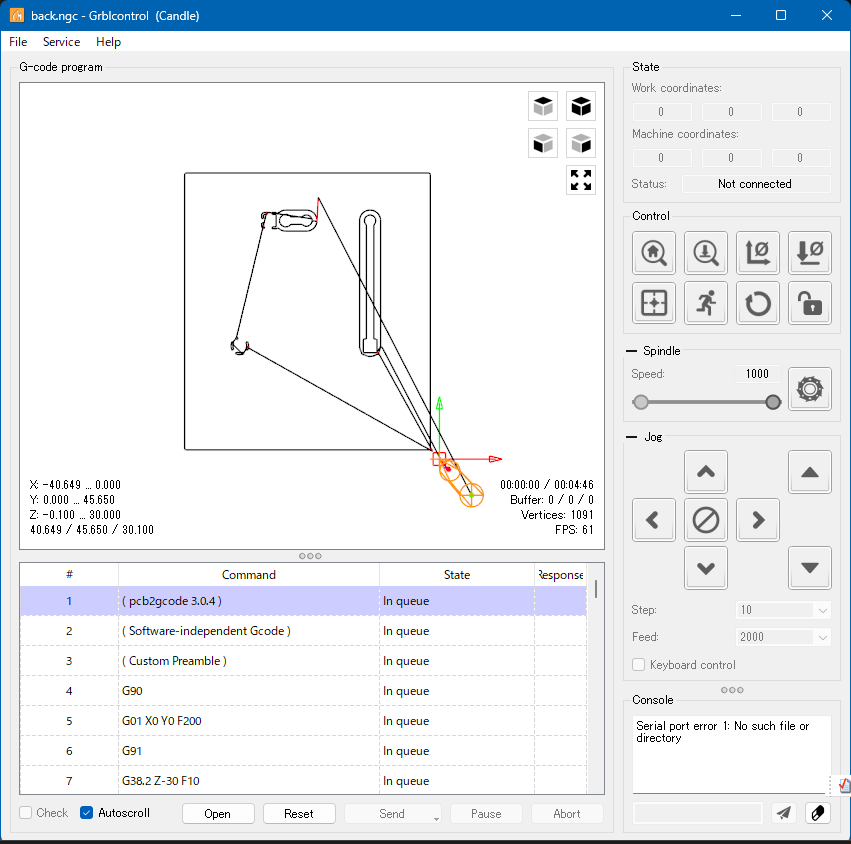
Next, it automatically recognized the /mnt/c/... paths of the output files, assembled the cutting parameter arguments, and passed them to the pcb2gcode_run tool of the pcb2gcode server.
As a result, without having to manually type any commands in the terminal, G-code files for front.ngc (surface pattern), outline.ngc (outline milling), and drill.ngc (drilling) were generated in batches within the specified folder. Loading them into Candle (the CNC control software) confirmed that the insulation milling paths and drill coordinates were output accurately as specified.
Top: Gerber file. Bottom: Front pattern file

 https://amzn.to/3UDb1w3
Conclusion
Following the automation of schematic design in KiCad, we have automated the G-code generation essential for milling custom PCBs using generative AI. By combining the native MCP functionality of pcb2gcode (merged into upstream) with the KiCad-MCP-Server, we built a pipeline bridging WSL2 via the wsl command. Simply by issuing instructions via natural language from a single AI session on Windows, we completed the entire workflow from CAD Gerber output to CAM G-code generation with zero manual labor.