Simulating Wooden Chair Strength with FreeCAD and CalculiX
I had been using a 3-tier color box as a work stool in my storeroom. By placing the opening facing upward, topping it with a “sunoko" (slatted) lid as a seating surface, and attaching casters to the bottom, it functioned as a movable storage stool.
However, over extended periods of use, tools and materials ended up constantly piled on top of the seat, making it difficult to lift the lid and access the items stored inside. As a result, the internal space essentially turned into dead space.
To solve this problem, I planned to build a “U-shaped outer cover" that fits over the outside of the color box. The idea is to transform the structure so that the top of the cover serves as a new workbench and chair, while the existing color box can be pulled out horizontally from the bottom like a wagon.
Pre-evaluating Strength Through Computer Simulation
The dimensions of the planned cover are designed to fit the storeroom space, approximately 720 mm wide × 460 mm deep × 400 mm high. Because the caster-equipped color box fits underneath, it is not possible to place reinforcing boards (tie beams) connecting the lower parts of the legs, creating a structural tendency for the center to sag.
If I designed a chair strong enough for human sitting based purely on intuition, there were concerns that the seat surface might sag significantly and crack, or that warping would prevent the lower storage unit from sliding out smoothly.
Therefore, before cutting any wood, I decided to pre-test strength and deflection on my computer. This process of verifying designs on a computer is called “CAE." This time, I performed a static analysis using FreeCAD, a free open-source CAD, combined with its built-in solver CalculiX, employing “FEM (Finite Element Method)," a representative technique that divides a model into a fine mesh to calculate deformation.
Human Sitting Load (1200 N) and Allowable Bending Stress of Wood
The specific verification conditions for the simulation were as follows:
- External dimensions of the verification model: 800 mm wide × 400 mm deep × 400 mm high
- The model was deliberately built with a wider span than the actual planned production (720 mm wide) under harsher dimensions to evaluate strength on the safe side.
- Assumed load: 1,200 N (approx. 120 kgf)
- A figure accounting for an adult’s body weight, dynamic load while sitting, and a safety factor.
- Pressurized area: A circular area 200 mm in diameter at the center of the seat
- Assuming the effective contact area where the pelvis and buttocks touch the seat surface.
- Evaluation criteria:
- The generated stress must fall within a safe range relative to the general allowable bending stress of wood (SPF lumber or softwood plywood, approximately 8.0 to 10.0 MPa).
- Verify the stress-reduction effect when reinforcing beams (square timber) are added to the underside of the seat.
The Difficulty of Reproducing Realistic Sitting Loads on a Model
When simulating a chair in FreeCAD, simply creating the model and setting a load is not enough to accurately reproduce actual sitting conditions.
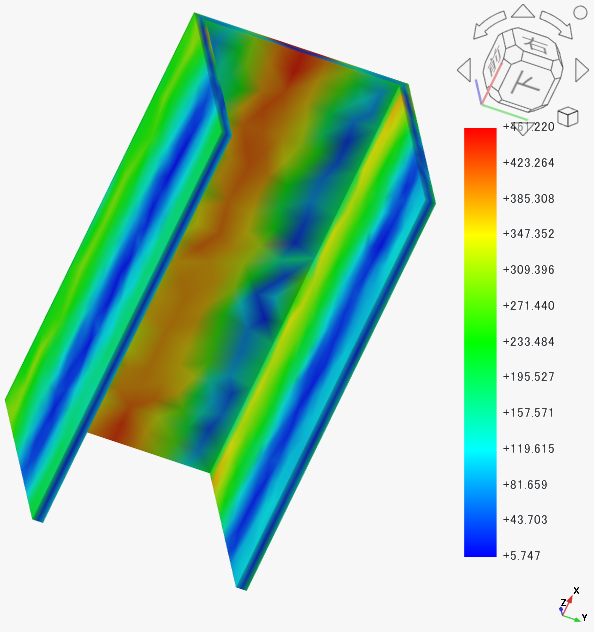
In FreeCAD’s FEM workbench, load constraints are applied per “Face." Therefore, if you simply select the entire top surface of the top board as created by default, the pressure will be distributed evenly across the entire seat surface (800 mm × 400 mm).
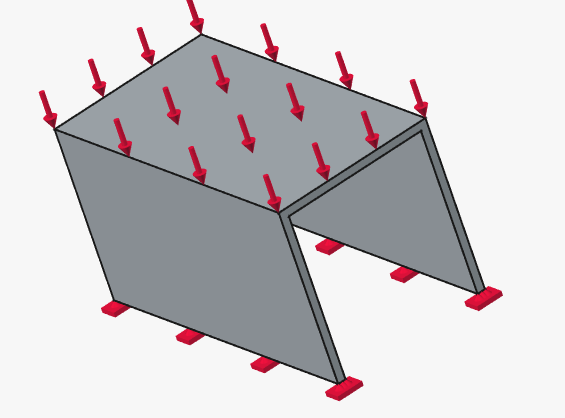
In reality, body weight is not distributed evenly across the entire seat surface when sitting; instead, a localized load is applied to the center. When pressure is applied across the entire seat, force escapes evenly to the side panels at both ends, resulting in deflection and stress being underestimated compared to reality.
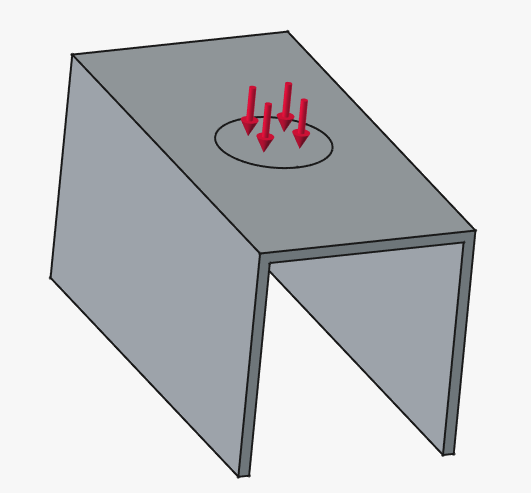
On the other hand, if a concentrated load is applied to a central “point (vertex)" to narrow down the pressurized area, the area of that point approaches zero in calculation theory, causing a “stress singularity" where stress diverges to infinity, making proper strength evaluation impossible. Defining a realistic load area with a finite surface area exclusively in the center of the seat becomes a major hurdle in analysis.
Step-by-Step Static Analysis Procedure Using FreeCAD and CalculiX
Here are the specific working steps up to defining a localized load surface and executing static analysis with FreeCAD and CalculiX.
Modeling the Load Patch and Solid Combination
- Model the U-shaped cover (800 mm wide, 400 mm deep, 400 mm high) in the PartDesign or Part workbench.
- Create a sketch on the top surface of the top board and draw a “200 mm diameter circle" in the center.
- Extrude (Pad) this circle upward by just 0.01 mm. While the step is invisible to the naked eye, an independent circular “Face" is generated in the center of the top board inside the CAD.
- If adding beams, place square timber on the underside of the top board.
- Leaving multiple parts as separate entities will cause errors in contact boundary calculations, so select all parts and completely integrate them into a single solid using the Part workbench’s “Boolean Union."
Creating the Analysis Container and Setting Material Properties
In FreeCAD’s material settings, simply selecting “Wood" or “MDF" from presets leaves required mechanical parameters blank, causing calculations to stop with errors (No YoungsModulus… / No PoissonRatio…). You must manually input the following parameters:
- Switch to the FEM workbench and click “Create analysis container" (the yellow 'A’ icon).
- Click the “Create material for solid (MaterialSolid)" icon and designate the created single solid as the target for application.
- Open the material editor and directly input the following items:
- Basic properties:
- Density: 500 kg/m^3 (General wood density)
- Mechanical properties:
- Young’s modulus: 8000 MPa
*When entered with the unit symbol, it is automatically converted to the display unit system of 8000000.00 kg/(mm*s^2). - Poisson’s ratio: 0.3
- Young’s modulus: 8000 MPa
- Basic properties:
Mesh Generation and Display Switching
- Select the integrated solid and create a “Netgen mesh" (set element size to approximately 15–20 mm).
- After mesh generation, select the mesh object in the tree and press the spacebar to hide it. This allows you to directly select the original solid faces.
- Floor Fixation (ConstraintFixed):
- Click the fixed constraint command to open it.
- Click the “Add" button in the lower-left task panel.
- Look up from below, and click the bottom faces of the legs touching the floor (the bottommost surfaces of the left and right panels) to add them.
- Click “OK" to confirm.
- Load Condition (ConstraintForce):
- Click the load constraint command to open it.
- Click the “Add" button in the lower-left task panel.
- Click to select the “200 mm diameter circular patch surface" created in the center of the top board.
- Set the direction to negative Z-axis (downward) and set the load value to 1200 N.
- Click “OK" to confirm.
- Write .inp file (Export analysis input file)
- Run CalculiX (Execute solver calculation)
- Double-click the results object in the tree and select “von Mises Stress" as the display item. This allows you to grasp via a color map which parts of the member are experiencing strong load concentrations.
- To view the results clearly in the 3D view, select the following objects in the tree view and press the spacebar to hide them all:
- Original modeling geometry (Body or combined solid)
- Mesh data (Gmsh or NetgenMesh)
- Result source object (CCX_Results)
- The thickness of the members (top board and beams) themselves has sufficient rigidity against a 120 kgf load.
- Do not overly rely on the integrated solid analysis; intensively reinforce the joints securing the beams.
- Drive two or more wood screws in parallel per location.
- Perform a shallow dado (housing) joint on the side panels, resting the beams on the steps in the wood to relieve shear stress on the screws.
- Drive screws from the underside of the top board into the beams as well, integrating the top board and beams to enhance bending rigidity.
Setting Constraints and Loads
In FreeCAD FEM, clicking a face on the screen directly will not register it as a constraint target. You must “press the 'Add’ button in the lower-left task panel once, then click the face in the 3D view."
Running the Solver (CalculiX)
Open CalculiXccxTools in the tree and execute the following in order:
Once the calculation finishes normally, CCX_Results is generated within the analysis container.
Tips for Viewing Analysis Results Clearly
By hiding these and leaving only the display of the created analysis pipeline, unnecessary wireframes and overlaps disappear, allowing you to clearly view the stress distribution heat map.
Comparison of Stress Analysis Results With and Without Beams and Joint Considerations
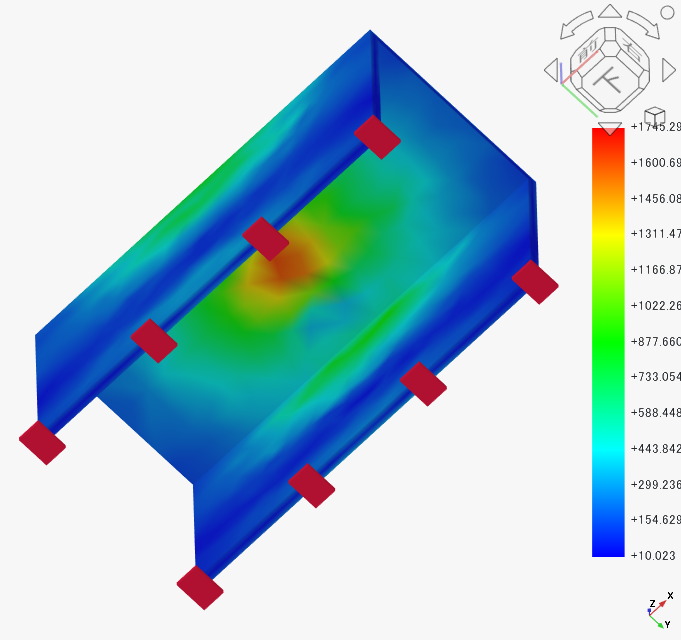
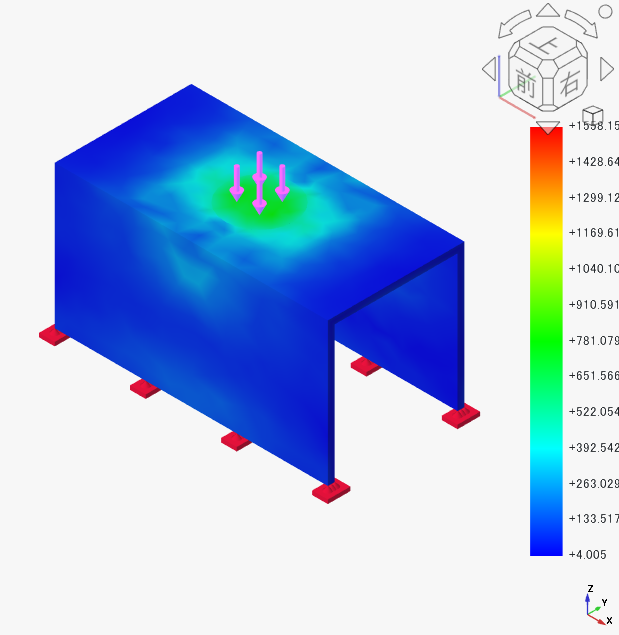
Under the identical condition of applying 1,200 N (approx. 120 kgf) to the patch surface in the center of the seat, two models—"Without Beams" and “With Beams"—were compared.
Analysis Results for the Model Without Beams
Strong stress concentration is visible around the central patch on the top surface of the seat.
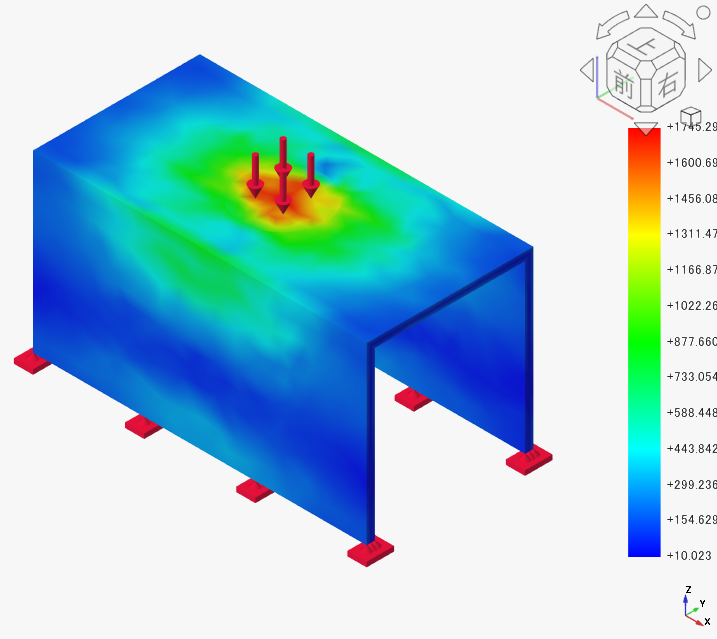
Checking the underside, the center of the top board shows discoloration ranging from red to yellow over a wide area. The maximum stress value recorded was +1745.29 (approx. 1.75 MPa). The bending deformation of the top board itself is significant, indicating a state where the seat alone is absorbing the entire load.
Analysis Results for the Model With Beams
In the model with square timber beams placed on the underside of the seat, the stress distribution on the top surface is mitigated, and the red-to-yellow areas are reduced.
Looking at the underside, the stress concentration on the bottom of the top board that was red without beams is completely resolved, falling into a stable blue-to-green zone. Instead, the lower center part of the beam spanning across the center is discolored red.
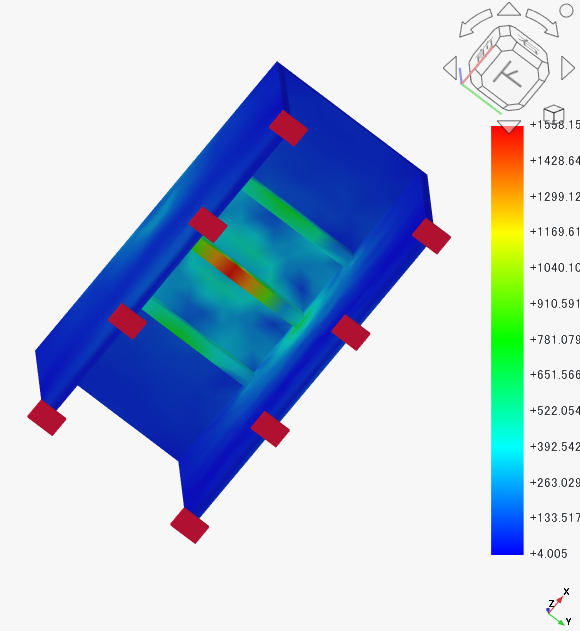
The maximum stress value was +1558.15 (approx. 1.56 MPa), confirming a stress reduction of about 200 (approx. 11%) compared to the beamless model. It shows that adding beams successfully disperses the load that would have otherwise fallen entirely on the seat top board.
Limits of Integrated Solid Analysis and Real-World Woodworking Design
Numerically, 1.56 MPa is well within the safe zone relative to the allowable bending stress of wood (approx. 8.0 to 10.0 MPa), giving confidence that the structure can hold up even with a wide 800 mm span if beams are added. Because the actual manufacturing dimensions (720 mm wide × 460 mm deep) will be narrower than this, deflection and stress in the physical object are expected to be kept even lower.
However, this simulation calculates the parts as a “single object where members are completely integrated (like a carved structure)." Therefore, the most important failure factor in actual woodworking is missing from the calculation.
In actual production, the heaviest load is not applied to the center of the beam, but rather to the “wood screw joints securing the beam to the side panels."
The load absorbed by the beams in the simulation is actually transmitted to the side panels through both ends of the beams. At that time, shearing forces—like being cut by scissors—concentrate on the wood screws, while rotational moments attempting to pull out the screws are simultaneously applied due to the bending of the seat. It is highly likely that screw loosening or wood splitting will occur before the wood itself breaks.
Therefore, the guidelines for reflecting simulation results into actual DIY are as follows:
Summary
The strength of the U-shaped cover repurposing the storeroom color box was verified using FreeCAD and CalculiX. By defining a 200 mm diameter load surface with a minute 0.01 mm extrusion, manually setting density and Young’s modulus (8000 MPa), and applying 1200 N, the results confirmed that adding beams reduced the maximum stress from approx. 1.75 MPa to approx. 1.56 MPa, showing the behavior of seat loads dispersing to the beams. While analysis using a single solid proved the member thickness itself is sufficient, real woodworking is expected to concentrate shear forces at the screw joints holding the beams. Anticipating that the safety factor will increase during actual production (720 mm width), I will move forward to actual manufacturing with a design incorporating joinery dadoes and multiple screw fastenings.