DaVinci Resolve Won’t Start? Causes and Solutions for the “GPU Configuration Warning” Error
Since I developed a new plugin for my Minecraft Paper server, I figured, “I might as well make an introduction video for it since I have the chance."
It’s been a while since I last did any video editing, so I thought it would be a great opportunity to try out a new editing software. I decided to use DaVinci Resolve, which I’ve been interested in for a while and is reputed to be both free and highly functional.
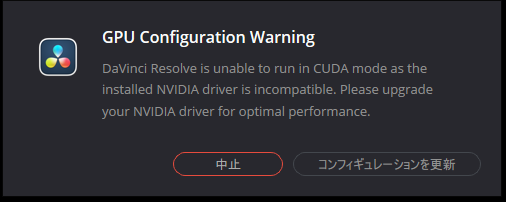
Everything went smoothly up until the installation, but when I tried to launch it for the first time, an unexpected error prevented it from working.
GPU Configuration Warning — NVIDIA driver is incompatible.
In this article, I will summarize the cause of this error and how to resolve it.
Cause of the Error
Judging from the warning message displayed, the core of the issue seemed to lie with CUDA (NVIDIA’s GPU computing API).
It appears that DaVinci Resolve uses CUDA for high-speed processing.
However, older NVIDIA drivers do not include the required CUDA version, causing an issue where Resolve cannot utilize the GPU properly.
This was precisely the case this time, as conditions such as:
- An outdated driver
- Not updating for a long period
- Windows Update applying an older driver
overlapped and likely prevented Resolve from launching.
Solution: Updating the Driver via GeForce Experience => NVIDIA App
When I tried to launch GeForce Experience,
a prompt window appeared asking, “Would you like to upgrade to the NVIDIA App?"
NVIDIA is currently transitioning from GeForce Experience to the new NVIDIA App, which is likely why this option appeared.
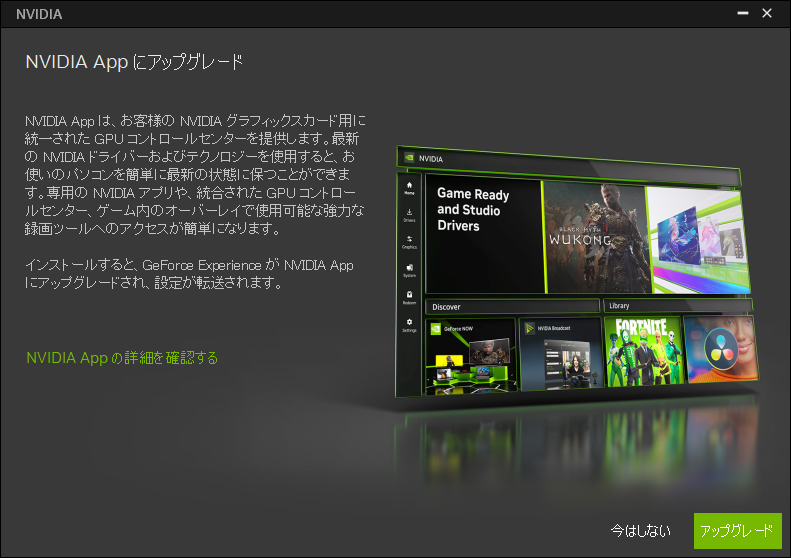
Performing the upgrade installs the NVIDIA App, allowing you to update to the latest driver from there.
Pay Attention to the Driver Selection Screen
When selecting a driver within the NVIDIA App,
- Game Ready Driver (for gamers)
- NVIDIA Studio Driver (for creators)
two options were available.

Since I would be using it for video editing (DaVinci Resolve) this time, I selected the creator-focused “NVIDIA Studio Driver."
Studio Drivers are optimized for creative applications such as video editing, 3D production, and CG rendering,
making them a great match for Resolve.
Actual Steps Taken
- Launch GeForce Experience
- Upgrade to the NVIDIA App following the on-screen prompts
- Open the “Drivers" menu in the NVIDIA App
- Switch the driver type to “NVIDIA Studio Driver"
- Install the latest version
- Restart the PC
Through these steps, DaVinci Resolve was able to launch without any issues.
Summary: Updating the NVIDIA Driver Fixed It Immediately
This issue was a very typical case of
“Resolve cannot start because CUDA is not available on an old NVIDIA driver."
However, this time,
- The prompt to upgrade from GeForce Experience to the NVIDIA App
- The choice between Game Ready and Studio drivers
involved a slightly different workflow than usual, which caused a brief moment of hesitation.
In conclusion, I learned that:
- If you’re using Resolve, the Studio Driver is the only choice
- Updating via the NVIDIA App fixes it right away
- It’s not a serious problem since it’s just caused by an outdated driver
With this, I can safely resume the production of my Minecraft plugin introduction video.
I hope this helps anyone struggling with the same situation.