I Built a WordPress Plugin to Jot Down Article Ideas Using Mind Maps in the Admin Screen
When writing articles in WordPress, I wanted a simple way to quickly jot down sudden ideas somewhere—born from that very wish is the “Mind Elixir Admin Mind Maps" plugin. I felt inconvenienced by saving them as drafts in posts or pages, and was looking for a system where I could quickly take notes more intuitively somewhere in the admin dashboard.
Source code here: https://github.com/bomura/wp-mind-elixir-admin
Motivation for Development
-
Nowhere to put ideas
While there are regular “draft" or “memo" plugins, they fall short when it comes to getting a bird’s-eye view of an article structure or expanding branches and sub-topics. -
The flexibility unique to mind maps
With a mind map, where headings and sections can be dynamically added or moved as nodes, leaps in thought and associations flow smoothly. -
The simplicity of Mind Elixir
“Mind Elixir", an open-source lightweight JavaScript library, can be loaded with just a single line of CDN and comes with drag-and-drop and export features. I thought this could be seamlessly integrated into the existing admin screen, which is where it all started.
Plugin Architecture and Key Files
-
wp-mind-elixir-admin.php
-
Adds the “Mind Map Editor" menu using
add_menu_page() -
Loads CSS/JS for Mind Elixir via admin hooks
-
Saves and retrieves JSON data to/from the option
mind_elixir_map_datavia AJAX or form submission
-
-
wp-mind-elixir-admin.js
-
Loads the core Mind Elixir library via CDN
-
Binds actions for the save and reset buttons
-
Restores the map based on JSON loaded from WordPress upon initial load
-
Screen Capture
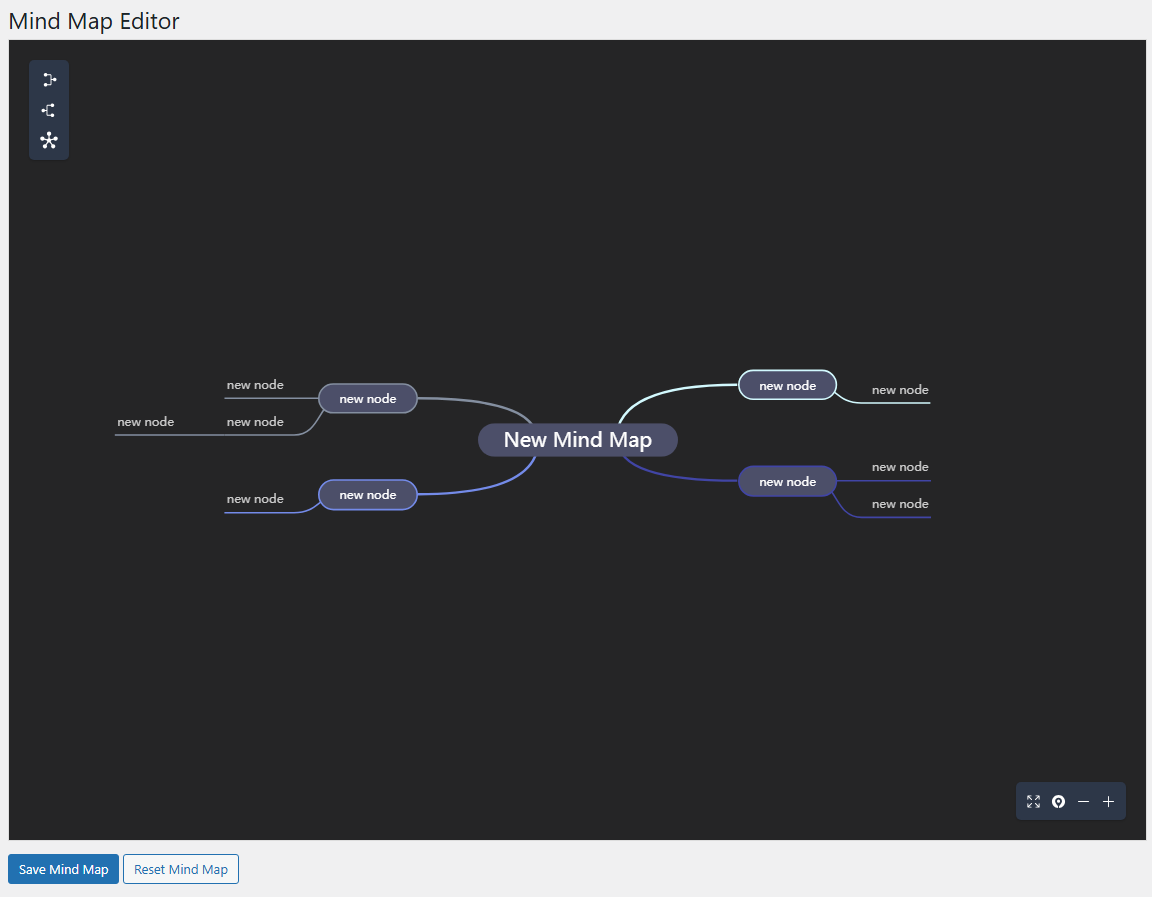
The “Mind Map Editor" page added to the admin screen. You can add and edit nodes with an intuitive UI.
User Guide
-
Activate the Plugin
Upload the plugin folder to/wp-content/plugins/wp-mind-elixir-adminand activate it, and a new menu will appear in the sidebar. -
Access the Editor
Go to the left sidebar → open Mind Map Editor to display the editor screen. -
Add/Edit Nodes
Click the center of the screen to add a new node. You can adjust positions via drag and drop. -
Save/Reset
Click the “Save" button in the top right to save to WordPress options. Click the “Reset" button to return to the initial state.
Future Outlook
-
Support for embedding in the post screen
-
Feature to switch between multiple maps
-
Enhancement of export functions (PNG/SVG)
- Auto-save feature at regular intervals