Rescue Lost Ideas from the Logs! Emergency Viewing Techniques When Gemini Chats Won’t Open
When writing blog posts for “Nando Kobo," I often use the Gemini app on my iPhone to jot down ideas while on the move. However, the other day, when I tried to finish up an outline I had put together on my iPhone over on my PC, I ran into a frustrating issue: the chat history wouldn’t open.
The iPhone screen displayed a message saying, “The project used to create this conversation has been deleted." From the PC browser, the chat itself seemed to have vanished entirely. While “continuing" the dialogue was no longer an option, there was no need to give up on the “fragments of thought" I had recorded there.
In this post, I will introduce a method for retrieving past conversation content from the gaps in the system logs.
Bypassing UI Constraints to Retrieve “Past Dialogue Content"
The goal this time is to rescue the text information contained within a Gemini chat when it can no longer be opened due to an error.
Even if you cannot “restore" the chat function to resume the conversation, being able to salvage the information of what you asked and how the AI responded makes it possible to continue your writing work. The aim is to bypass the door of information closed by error messages and view it through an alternative route: the logs.
Unsychronized History and Unfixable “Deletion" Errors
The problem I faced this time was simple yet presented a desperate symptom that users could do nothing about.
- Cross-device synchronization failure: The chat history I worked hard to leave on my iPhone could no longer be viewed on my PC, leaving only the chat title behind.
- “Restoration" is physically impossible: Reloading the browser or restarting the app did nothing to change the situation. The screen simply kept displaying errors like “The project has been deleted." This meant the system was treating the chat data as if it no longer existed, making it impossible to return to a conversational state through normal operations.
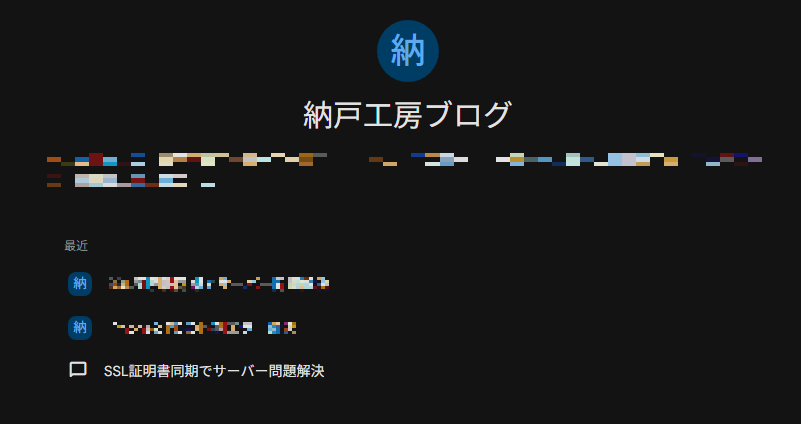
Looking at the third item, even the icon gives off a broken vibe.
It truly felt as though a page from a notebook I had painstakingly written in had been ripped out by a system error.
Solution: Directly Viewing “Dialogue Logs" via Google My Activity
Even if the chat functionality is dead, the data remains alive as part of your Google account’s “Activity." I forcefully viewed the contents using the following steps:
- How to check your activity
From the Gemini menu opened in your browser, select “Settings and help" > “My Activity." This is a pure “operation log" storage location independent of the chat UI. - Unearthing data through detailed views
The chronologically arranged history displays parts of conversations, allowing you to search for the content of the chat that would no longer open. Click on “Gemini App" for that specific item. - Rescuing the text
Opening the details will surprisingly reveal both “what you sent" and “Gemini’s response" as plain text. The content that was rejected as “deleted" on the chat screen remains quietly accessible here. All that’s left is to copy this text and move it to a new location.
Conclusion: Even If Data Disappears, Records Remain
What I learned through this experience is that “even if the front door is closed, the back door (logs) might still be open."
If you ever encounter a similar issue, please take a look at “My Activity" deep within your settings. The fragments of thought you built up alongside the AI should be quietly waiting to be rescued there.